

Step-by-Step Guide: How to Disable Bixby on Your Samsung Phone
Is Bixby getting in the way of your smartphone experience? We’ve all been there—accidentally triggering Samsung’s digital assistant when you least expect it. Whether you’re a seasoned Samsung user or just exploring the features of your new phone, learning how to disable Bixby can significantly streamline your mobile experience. Let’s get that pesky assistant turned off and reclaim your device’s functionality!
Our comprehensive, easy-to-follow guide takes you through the steps to disable Bixby, ensuring you no longer have to deal with unwanted interruptions. You’ll be amazed at how simple it is to customize your phone to better suit your needs and preferences. Ready to tweak your device settings and enhance your phone’s performance? Let’s jump right in and start optimizing your Samsung phone today!
Understanding Bixby: What It Is and How It Works
Bixby is Samsung’s answer to digital assistant technology, similar to Apple’s Siri or Google’s Assistant. But what exactly does Bixby do, and why might you consider disabling it on your Samsung phone? Let’s dive in to understand its features and integration in your daily tech setup.
Bixby operates as a voice-powered assistant, designed to help you manage tasks, interact with your device, and personalize your digital experience. 📱 Have you ever asked Bixby to set a reminder or send a text message using just your voice? That’s Bixby at work! However, despite its potential benefits, some users find it may not always align with their usage preferences or privacy concerns.
- Voice commands to control your phone
- Bixby Home offers tailored information based on your usage patterns
- Quick commands that streamline interaction with multiple apps
Understanding how Bixby integrates into the functionality of your Samsung phone is crucial, especially if you’re considering disabling it. Did you know that Bixby is deeply integrated into the Samsung ecosystem, further enhancing device usage for some users while being a nuisance for others? Depending on your personal preference, you might either fully embrace it or opt for disabling techniques, which we will discuss later in this guide.
Initial Steps Before Disabling Bixby on Samsung
Before you rush to disable Bixby on your Samsung device, it’s wise to take a few preparatory steps. Ensuring these initial tasks are covered will make the deactivation process smoother and more effective. After all, you don’t want to miss any steps that might be crucial, right?
Check Your Device Compatibility
First and foremost, verify if your Samsung model supports the deactivation or customization of Bixby. Most newer models do, but it’s always better to check rather than assume. You wouldn’t want to follow all the steps only to find out your device doesn’t support changes to Bixby!
Update Your Software
How to Turn Off Bixby Home from the Home Screen
If you’re reading this, chances are you’ve found Bixby Home popping up more often than you’d like. Don’t worry, turning off Bixby Home from the Home screen on your Samsung phone is straightforward and quick. Ready to reclaim your screen real estate and boost your phone’s performance? Let’s get into it!
First off, let’s navigate to your Home screen. Are you there yet? Great! Now, long press on an empty space on your Home screen. This action will bring up the Home screen settings menu, giving you access to various customization options. Here’s where the magic happens!
Turning Bixby Home Off
In the settings menu, you’ll likely see several pages you can swipe through at the bottom. Do you see the one with the Bixby Home toggle? Swipe towards the left till you find it. Once you spot the Bixby Home toggle, all you need to do is tap on the toggle to turn it off. Yes, it’s as simple as that! 🎉
After you’ve disabled Bixhippy Home, press the Home button or tap on an empty area on the screen to exit the edit mode. Voila! You have successfully eliminated Bixby Home from your Home screen. How does it feel to have a Bixby-free Home screen experience?
Remember, disabling Bixby Home is just one aspect of minimizing Bixby’s presence on your Samsung phone. To completely disable Bixby’s functionalities, consider disabling Bixby Voice and reprogramming the Bixby button, which are covered in the next sections of this guide.
Disabling Bixby Voice: Stop Bixby from Listening
Feeling a little overwhelmed by Bixby always listening in on your conversations? You’re not alone! Many Samsung users find it necessary to disable Bixby Voice to maintain privacy and enjoy a more streamlined user experience. Let’s walk through how you can stop Bixby from listening with just a few simple steps.
Turn Off Bixby Voice
To disable Bixby Voice, you’ll need to access the Bixby settings directly from your Samsung device. Start by opening Bixby Home; you can do this by pressing the Bixby button or swiping right on your home screen to reach the Bixby Home panel. Are you there yet? Great! Now, tap the three vertical dots in the top right corner to open the menu.
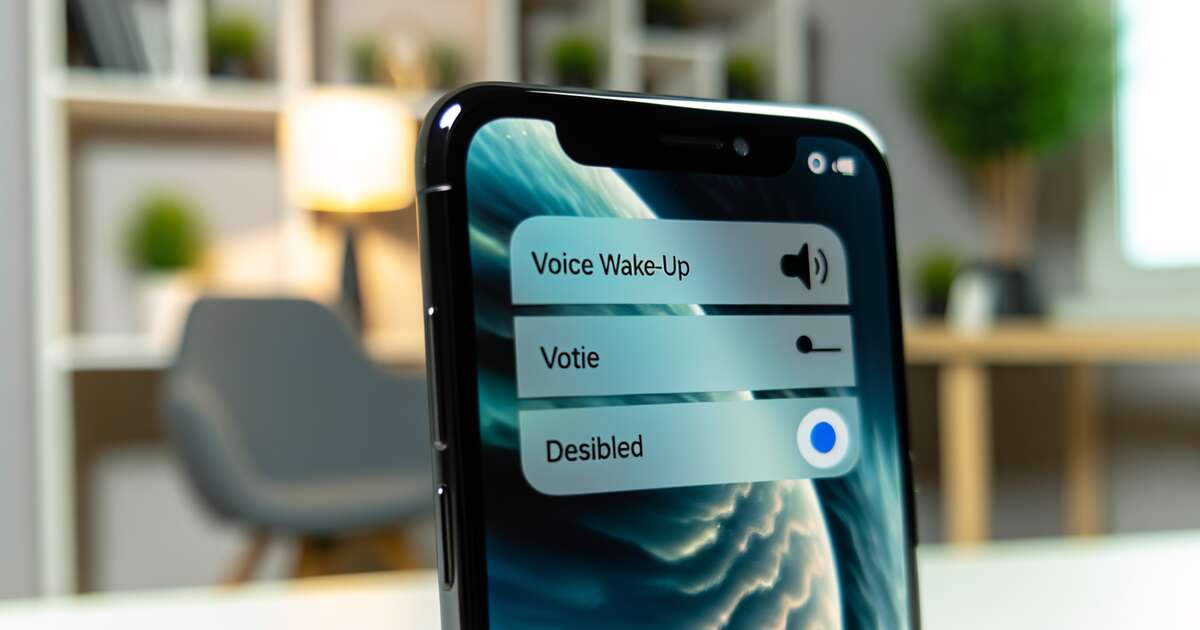
Once you’re in the menu, select ‘Settings,’ and then look for the option labeled ‘Voice wake-up.’ Here, you’ll find a toggle that you can switch off to prevent Bixby from activating when you say ‘Hi, Bixby.’ Turning this off means Bixby will no longer listen out for your commands unless you manually press the Bixby button.
Isn’t it liberating to know you can control when your virtual assistant listens to you? Just a few taps and voilà, you’ve reclaimed your privacy!🔇
Removing Bixby Button Functionality on Samsung
Has the Bixby button been a source of frustration for you? Well, you’re not alone! Many Samsung users find themselves accidentally pressing the Bixby button, triggering unwanted interactions. Luckily, disabling this button is simpler than you might think. Let’s get into how you can reclaim control over your Samsung device by removing the Bixby button functionality.
First, navigate to the settings menu on your Samsung phone. You’ll find an option specifically for the Bixby key. Here, you can alter the settings so that pressing the button does not activate Bixby. Imagine the relief of not having your phone interrupt you with Bixby’s voice. Isn’t that a breath of fresh air? 🙌
For those who want a little extra, Samsung allows you to completely disable Bixby from being activated by the button. You can select ‘Double Press to Open Bixy’ and toggle off the ‘Single press’ option. This ensures that a casual, accidental press won’t disrupt your day. Why not give your device the customization it deserves?
- Open Settings and go to Advanced Features
- Access Bixby key options
- Turn off the ‘Single press to open’ feature
Once you’ve set this up, the Bixary button can either become non-responsive to single presses or require a double press, minimizing accidental triggers. While you’re customizing, why not explore other ways to optimize your phone’s interface to better suit your lifestyle?
Common Questions
How do I completely disable Bixby?
Disabling Bixby entirely depends on the device and software version you are using. For many Samsung devices, you can disable Bixby features through a series of steps in the settings menu. Typically, you can go to the Bixby Home or Bixby Voice settings, sign in with your Samsung account, and then navigate to the settings gear icon. From there, you might have the option to disable the Bixby button or change its functionality so it doesn’t wake with a single or double press. Additionally, you can disable voice wake-up features and Bixby Home page from the device’s home screen settings. However, complete removal of the Bixby software component might not be possible without rooting the device, which is not recommended as it may void the warranty and can cause system instability.
Is Bixby always listening?
Bixby is designed to start listening only when you activate it, either by pressing the Bixby key, using a specific voice wake-up command (like ‘Hi, Bixby’), or through certain touch interactions. However, for the voice activation feature to work, Bixby does need to monitor sounds to detect the wake-up command. This monitoring uses a low-power optimized process that specifically listens for the Bixby wake-up phrase. Privacy controls are in place to ensure that any recording or listening is only actively processed when knowingly activated by the user. Users concerned about privacy can disable the voice wake-up feature or adjust their device’s permissions settings for greater control.
What does Bixby do?
Bixby is Samsung’s digital assistant, designed to enhance user interaction with their devices. It offers voice commands, voice dictation, and deep integration with Samsung’s smartphones, appliances, and smart devices. With Bixby, users can perform tasks like sending texts, making calls, adjusting device settings, and getting recommendations for context-based actions. It also integrates with various apps for booking a table, checking the weather, or controlling IoT devices at home. Bixby Routines, another feature, automates certain actions based on user habits or environmental changes. For example, it can automatically turn on Wi-Fi when you get home or mute your phone at your office. Bixby aims to be adaptive and personalized to improve user-device interactions over time.
Alternative Solutions: Reprogramming the Bixby Key
Not a fan of Bixby? Guess what? You aren’t stuck with it! Did you know you can actually reprogram the Bixby key to do something more useful for you? Yes, that’s right; with a few tweaks, you can set up the Bixby button to perform tasks that suit your daily needs better. Let’s explore how you can turn this button into a shortcut for your favorite app or action!
Step-by-Step Reprogramming Instructions
- Open your Samsung phone’s settings.
- Navigate to the Advanced features section.
- Tap on Bixby Key and select ‘Double Press to Open Bixby’.
- Below this option, activate the ‘Use Single Press’ toggle.
After enabling the single press option, you get to select what this button does. Here’s where it gets fun! You can link it to open any app, execute a quick command like taking a screenshot, or even launch a frequently used contact. Isn’t it amazing to customize your phone’s functionality to match your style and preferences? 🚀
Final Thoughts: How to Disable Bixby on Your Samsung Phone
With these simple steps, disabling Bixby on your Samsung phone is easier than ever! By now, your device should be free from Bixby’s interruptions, allowing you a more personalized and efficient user experience. Did you enjoy reclaiming control over your Samsung phone functions?
If you’re looking for other tips to optimize your smartphone use, don’t hesitate to explore more of our guides. Whether it’s tweaking settings or discovering new features, enhancing your device’s functionality can lead to a smoother, more enjoyable mobile experience. 📱 Keep tweaking, and enjoy the newfound silence from Bixby!


