

Top Google Maps Tips and Tricks for Savvy Users
Are you ready to transform how you use Google Maps? Whether you’re navigating through the bustling city streets or planning an epic road trip, knowing a few Google Maps Tips can drastically enhance your navigation experience.
Google Maps isn’t just for getting from point A to B. With these savvy tips, you’ll be able to uncover hidden features, shorten your travel time, and even save your precious data! Want to learn how to make Google Maps work better for you?
Keep reading as we dive into the top tips and tricks that will make you a Google Maps pro in no time! 🌏✨ Get ready to optimize your journeys and maybe even discover some new places along the way.
Optimizing Your Route: Tips for Efficient Navigation
Getting from point A to point B can often be full of delays and frustrations, right? 📍 But with a few savvy Google Maps Tips, you can optimize your journey to be smoother and quicker. Whether you’re commuting to work, planning a road trip, or navigating a new city, these strategies will help you use Google Maps more effectively.
Prioritize Real-Time Traffic Updates
Enabling real-time traffic updates is a game-changer for route optimization. Google Maps can adjust your path mid-journey to dodge traffic jams and unexpected closures. Have you ever found yourself stuck in a sudden traffic snarl? Next time, let Google Maps guide you around it before you’re even close!
Leverage Route Options
Did you know you can customize your travel path based on your preferences? Whether you prioritize the fastest route, the shortest distance, or even fewer highway travels, Google Maps offers multiple route options to tailor your drive. Select your preferred route before you set off to minimize any potential slowdowns on your journey.
Avoid High-Traffic Times
Timing is everything when it comes to navigating more efficiently. Google Maps can forecast peak traffic times — use this feature to plan your departures during less congested periods. Sometimes, leaving just 10 minutes earlier can make a significant difference in travel time!
Use the ‘Avoid Tolls’ or ‘Avoid Highways’ Options
If tolls and busy highways aren’t your thing, Google Maps has got you covered. Easily toggle the ‘avoid tolls’ or ‘avoid highways’ options in your settings for a more relaxed, scenic route that might just save you time as well, especially during rush hours.
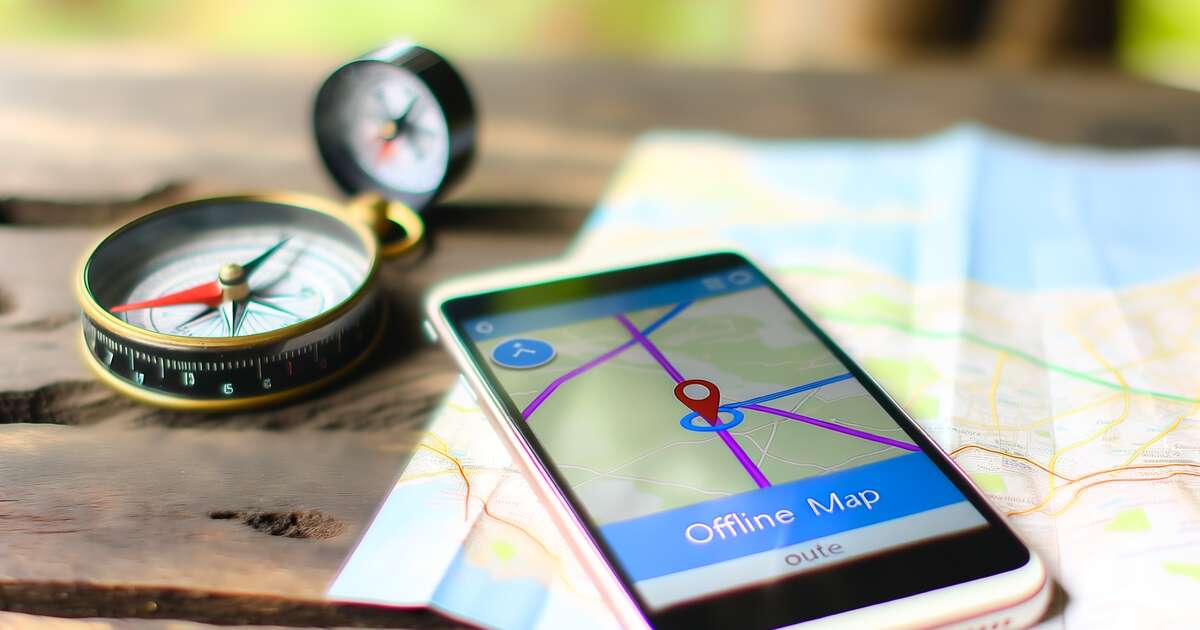
Using Google Maps Offline: A Step-by-Step Guide
Ever been stuck in a location with no internet and suddenly felt the need for a map? Google Maps offers a fantastic feature for such situations—using maps offline! This not only saves data but is a game-changer for uninterrupted navigation. Let’s walk you through a simple step-by-step guide to use Google Maps offline. Ready to learn something cool today?
Step 1: Select Your Map Area
Open Google Maps and search for the area you wish to download. It could be a city, a neighborhood, or even a specific street. Make sure your device is connected to the internet and signed in to Google Maps. Have you picked your area yet?
Step 2: Download the Map
Once you’ve found your desired location, tap on the place name or address at the bottom of the screen to bring up additional options. Then, click on the “Download” button. A map will show the area that will be downloaded. Ensure it covers all regions you need while offline. Excited to see how it works out?
Step 3: Access Your Offline Maps
To access your offline maps, head over to the ‘Offline maps’ section in the Google Maps menu. Here, you can view all your downloaded areas and also check for updates or delete them as necessary. It’s essential to keep your maps updated to account for any changes in the roads or locations!
Useful Tip
Always remember that downloading large areas may require significant storage space on your device, so plan accordingly. Also, offline maps will expire after a certain period if they aren’t updated, so keep an eye on them! Isn’t it amazing how Google Maps can help you navigate with ease, even when you’re offline? 🌍
Customizing Google Maps: Markers, Colors, and Layouts
Have you ever wanted to make your Google Maps look a bit more personalized? Whether you’re planning a road trip or trying to highlight specific locations for a project, customizing your maps can be both fun and incredibly useful. Utilizing markers, colors, and layouts on Google Maps not only enhances your mapping experience but also makes the information much clearer and more accessible.
Markers are a powerful tool in Google Maps. They allow you to pinpoint exact locations and add descriptions or even photos to each point. Imagine marking all your favorite coffee shops in the city or the different landmarks you want to visit on your next vacation. Isn’t it exciting to see your map transforming with every marker you add?
Customizing Colors and Layouts
Changing the color schemes and layouts in Google Maps can significantly improve the readability and aesthetics of your maps. For instance, you might use a soft color palette for a more relaxed trip or bold shades to highlight high-priority areas. The customization options are practically endless, ensuring that every map you create using Google Maps Tips is exactly how you need it to be.
- Highlight important areas using distinct colors
- Use custom icons for markers to reflect the nature of locations
- Adjust map layouts to emphasize particular regions
Why not start customizing your Google Maps today? You’ll be amazed at how small tweaks can make navigation and location tracking more efficient and personalized. After all, who wouldn’t want their maps to be as unique as their journeys?

Discovering Hidden Features of Google Maps
Have you ever felt like you’re only scratching the surface of what Google Maps can do? Beyond basic directions, this app is packed with lesser-known features that can significantly enhance your navigation experience. Let’s dive into some of these hidden gems!
Timeline View: Your Personal Travel Diary
Did you know Google Maps has a feature that lets you see a timeline of all the places you’ve visited? It’s not just a cool way to recall your trips, but it’s also incredibly useful for keeping track of your travel history. You can access this feature in the app’s menu—just look for ‘Your Timeline’ to explore places you’ve visited, complete with the routes you took and the times you were there.
Incognito Mode for Enhanced Privacy
If you’re concerned about leaving a digital trail, Google Maps’ Incognito Mode is your friend. When enabled, it ensures that your activity, like the places you search for or navigate to, isn’t saved to your Google Account. This feature is perfect for those moments when you want a bit more privacy.
Real-Time Sharing of Your Trip Progress
Planning a rendezvous and want your friends to know when you’ll arrive? Google Maps allows you to share your real-time location and trip progress with others. Just start navigation, tap on the “+” button, and select ‘Share trip progress’. Your friends can then see your expected arrival time and follow your journey until you’ve reached your destination. Isn’t that pretty neat?
These features are just the tip of the iceberg. Dive deeper into Google Maps, and you’ll find plenty of other tools that can make your travels smoother and more enjoyable. Why not give them a try on your next outing? 🌍
Improving Location Accuracy on Google Maps
Having trouble with GPS inaccuracy on Google Maps? It can be frustrating when the app shows you a slightly off course or when it fails to pinpoint your exact location. Luckily, there are several simple steps you can take to enhance the location accuracy using Google Maps, ensuring you stay right on track during your travels.
Enable High Accuracy Mode
First things first, make sure your device’s location setting is switched to ‘High Accuracy’ mode. This mode uses a combination of GPS, Wi-Fi, Bluetooth, and cellular networks to determine your location, which is crucial for getting the most accurate location information in Google Maps. Isn’t it great to know how easy this switch can be?
Regular Updates and Calibration
Keep your Google Maps app and your device’s operating system up to date. Updates often include improvements to location accuracy. Additionally, calibrating your compass on your smartphone can significantly improve location detection. Have you ever noticed a small improvement in accuracy just by updating your app or calibrating your compass?
- Update Google Maps app regularly
- Calibrate your device’s compass
- Ensure ‘Location’ is set to ‘High Accuracy’ mode
Clearing Obstructions
Finally, make sure that there are no physical obstructions like tall buildings or heavy overhead coverage when using your GPS. These can interfere with the signal. Trying to navigate through urban canyons or under heavy tree cover? Keep your phone in a clear line of sight to the sky to help Google Maps locate you more accurately. 🌐
Common Questions
How do I use Google Maps tips?
Google Maps is a versatile tool which can be enhanced by utilizing various tips, such as using the voice navigation feature for hands-free guidance while driving. You can also customize your travel experience by saving frequently visited places like your home and workplace. Another useful tip is to download offline maps, which is particularly handy in areas with poor or no internet connectivity. Additionally, checking live traffic updates can help you avoid congested routes, and using the ‘Street View’ feature will give you a realistic glimpse of your destination before you even reach there.
How do I make Google Maps work better?
To enhance your experience with Google Maps, ensure you have a stable and fast internet connection, as Google Maps relies heavily on data to function optimally. Regularly update the app to get the latest features and improvements. In the app settings, clear the cache periodically to fix and prevent loading issues and improve app performance. Enable high accuracy GPS mode on your phone to get more precise navigation; this can typically be found in your phone’s location settings. Moreover, customize your maps by saving frequently visited places like home or work, and enable notifications to get traffic updates and route changes. If you use it while driving, consider setting up voice navigation for hands-free operation.
What are three things you can do with Google Maps?
Google Maps offers numerous functionalities, three of which include: navigation, exploration, and location tracking. Firstly, it provides detailed turn-by-turn navigation for various modes of transportation, from driving and walking to biking and public transit, complete with estimated arrival times and real-time traffic conditions. Secondly, you can explore new places using Google Maps, which can suggest points of interest like restaurants, museums, and other attractions in your vicinity. Lastly, Google Maps allows you to share your real-time location with friends or family, a feature that can be particularly useful for coordinating group events or ensuring safety during travel.
Integration of Google Maps with Other Apps
Ever noticed how seamlessly Google Maps integrates with other apps on your smartphone? This sophisticated feature not only improves user experience but also enhances the utility of the apps we use daily. For instance, ride-sharing apps like Uber and Lyft utilize Google Maps for navigation, providing both drivers and passengers with real-time updates about the best possible routes.
But why stop at ride-sharing? Food delivery services also tap into the power of Google Maps to ensure hot meals arrive at your doorstep as quickly as possible. Real estate apps like Zillow and Redfin give potential home buyers a bird’s eye view of new properties, all thanks to the detailed satellite imagery and street views these apps pull from Google Maps. How cool is that?
Imagine planning a vacation. Travel applications integrate Google Maps to show hotel locations, nearby attractions, and even route information from your current location. Integration simplifies your planning process, making sure you get the most out of your trips. Incorporating Google Maps Tips into these apps makes navigating unfamiliar towns feel like a breeze.
- Ride-sharing apps for efficient route planning
- Food delivery for swift service
- Real estate apps for detailed property views
- Travel apps for easy vacation planning
Final Thoughts: Top Google Maps Tips and Tricks for Savvy Users
We’ve traversed through some amazing Google Maps tips and tricks today, but the journey doesn’t end here! Remember, mastering Google Maps can significantly enhance your navigation experience, whether you’re traveling to unfamiliar terrains or just finding a quicker route to work. Aren’t you excited to put these tips into action on your next journey?
Keep experimenting with different settings and integrations to truly tailor Google Maps to your needs. Happy navigating, and may you always find the best way forward with these savvy user tips! 🌍📍


