

Printer Won’t Connect to Wi-Fi? Try These Proven Fixes
Struggling with a printer that won’t connect to Wi-Fi? It’s a common scenario that can disrupt your work and slow down productivity. Thankfully, there are several proven fixes that can help get your device back online in no time. In this guide, we’ll explore some of the most effective strategies to solve this frustrating issue. Are you ready to turn those printer woes into printer wins?
First and foremost, it’s important to understand why your printer won’t connect to Wi-Fi. Is it a problem with the printer settings, the network itself, or something else entirely? No worries, we’ve got you covered! We’ll walk you through step-by-step solutions that range from simple checks and tweaks to more comprehensive troubleshooting methods. So why wait? Grab a cup of coffee, and let’s fix that printer!
Ensure Your Printer is Within Wi-Fi Range
Is your printer stubbornly refusing to connect to Wi-Fi? Before you dive deeper into more complex solutions, let’s start with a simple yet crucial step: ensuring your printer is within the optimal Wi-Fi range. Just like any other wireless device, printers have a limited range in which they can communicate effectively with your Wi-Fi router.
Place your printer closer to your router and make sure there are no obstructions such as walls or large metal objects in between. These obstacles can significantly weaken the signal strength. Have you ever experienced a sudden drop in your Wi-Fi connection when moving from one room to another? It’s the same concept with your printer. The closer and clearer the path to your router, the better the connection stability.
Furthermore, electronic devices and appliances can cause interference with your Wi-Fi signal. Try to keep your printer away from microwaves, cordless phones, and other devices that could disrupt the connection. Isn’t it fascinating how such small adjustments can make a big difference in connectivity?
By ensuring your printer is optimally positioned relative to your router, you help create the most stable and robust environment for a seamless wireless connection. Remember, the goal is to reduce as many barriers as possible between your printer and the router. What other devices in your home might be affecting your printer’s Wi-Fi connection?
Restart Your Printer and Wi-Fi Router
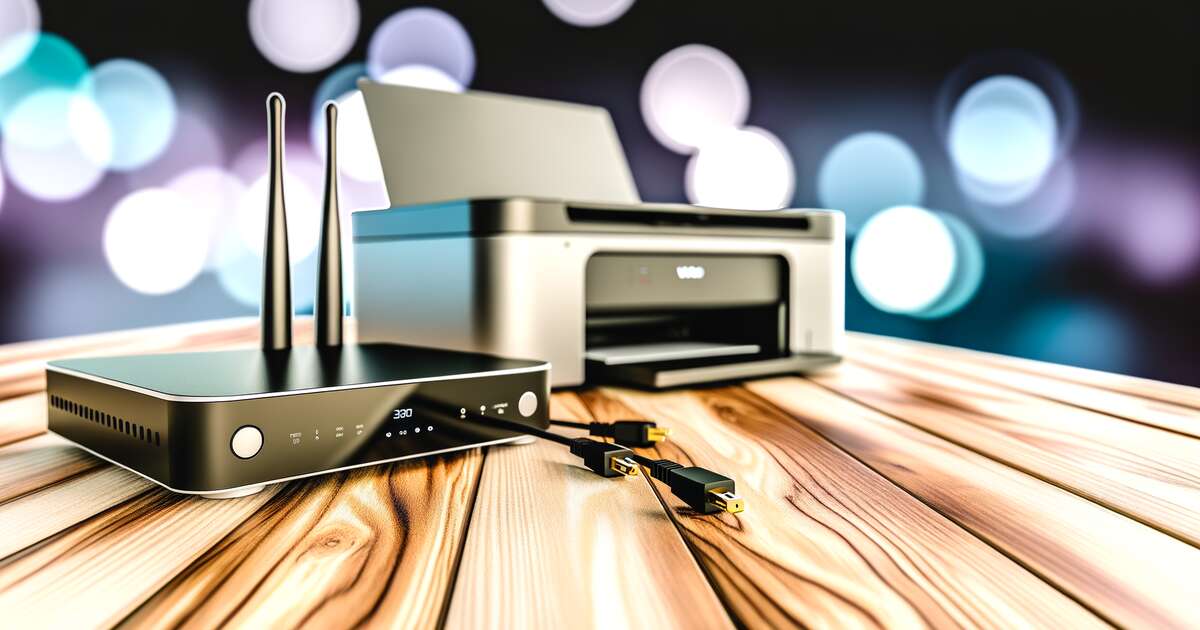
Having trouble because your printer won’t connect to Wi-Fi? 🤔 Sometimes, the solution might be easier than you think! A quick restart of your devices could be all that’s needed. It might sound simple, but restarting your printer and Wi-Fi router can resolve many connection issues. It helps clear any temporary glitches in the network and can re-establish a stronger connection.
First, switch off your printer and unplug it from the power source. Do the same with your Wi-Fi router. Wait for at least 30 seconds before plugging them back in. This pause ensures that the devices are properly reset. After plugging them back in, turn them on and give them a minute or two to fully boot up. Are you curious if this simple step could solve the issue?
Once both devices are back online, try connecting your printer to your Wi-Fi network again. Often, this reboot removes any potential barriers that were preventing a successful connection. Not only is this method quick, but it’s also quite effective at refreshing your network’s settings.
- Turn off and unplug both your printer and router.
- Wait for 30 seconds before reconnecting.
- Turn on both devices and allow them to reboot.
- Attempt to reconnect your printer to the Wi-Fi.
Update Printer Firmware for Improved Connectivity
Updating your printer firmware can dramatically enhance its connectivity. But how exactly does this work? Firmware, the software embedded within your printer, controls how the device behaves. Manufacturers regularly release updates to improve performance, add new features, and most importantly, fix bugs related to device connectivity.
To update your printer’s firmware, start by visiting the manufacturer’s website. Search for the latest firmware that matches your specific printer model. Be sure to download the correct version to avoid any mishaps! Unsure where to look? Check out the support or download sections of the site; these should guide you right to the updates.
Check and Reset Your Wi-Fi Network Settings
Has resetting your Wi-Fi network settings crossed your mind? Often, incorrect settings can be the culprit when your printer won’t connect to Wi-Fi. Navigating through your router settings might sound daunting, but it’s a crucial step to ensure everything is configured correctly for your printer.
Begin by accessing your router’s admin panel – typically through a web browser. You’ll need to enter the router’s IP address, usually found on the back of the device. Aren’t sure what the default login is? Check the manufacturer’s website or the user manual. Once you’re in, look for settings related to wireless communication, such as SSID (network name), network mode, and channel settings.
If you’re feeling a bit lost in the tech jargon, don’t worry! Most routers have a ‘Restore to Default’ option. This can be a quick fix to erase any customized settings that might be causing connection issues. Remember, after resetting, you will need to reconfigure your network settings. Why not give it a try and see if it resolves your connectivity problems? 🤔
Using WPS to Connect Your Printer to Wi-Fi
If you’ve been struggling with the frustrating issue where your printer won’t connect to Wi-Fi, have you tried using Wi-Fi Protected Setup (WPS)? It’s a simpler way to establish a connection without the need to enter complex passwords!
Here’s how to use WPS to connect your printer: First, ensure that your printer and router both support WPS. Most modern devices do, but it’s always good to double-check. Next, locate the WPS button on your router, which usually has the symbol of two arrows forming a circle.
Press the WPS button on your router – but wait, there’s a specific order! After pressing the button on your router, go to your printer and select the option to connect via WPS. This differs from model to model, so refer to your printer’s manual if you’re unsure. Typically, the connection should establish itself within a few minutes. 🖨️✨ Remember, successful connections depend on proximity, so make sure your printer isn’t too far from your router.
Common Questions
Why is my wireless printer not connecting to Wi-Fi?
There are several reasons why your wireless printer may not be connecting to Wi-Fi. Common issues include incorrect network settings, an outdated or corrupted printer driver, or physical obstacles causing interference in the wireless connection. To resolve this, ensure that the printer is within a good range of the Wi-Fi router and that there are no physical interferences such as walls or other electronic devices that could block the signal. Additionally, verify that the network settings, such as the SSID and password, are correctly entered on the printer. Updating or reinstalling the printer driver can also help address connectivity problems.
How do I get my wireless printer to connect?
To connect your wireless printer, start by ensuring your printer and Wi-Fi router are turned on and functioning correctly. Check the printer’s manual for specific wireless setup instructions, which typically involve navigating to the settings or network setup menu on the printer’s display panel. Choose the option to enable wireless connectivity, then select your Wi-Fi network and enter the Wi-Fi password. It may also be necessary to install the printer’s software on your computer or download the appropriate app for smartphones and tablets, which helps in managing printer settings and connectivity.
How do I get my HP printer to recognize my Wi-Fi?
To get your HP printer to recognize your Wi-Fi network, turn on the printer and use the touchscreen or buttons to access the wireless setup options within the printer’s menu. Select the ‘Wireless Setup Wizard’ which guides you through selecting your network name (SSID) and entering the password. Ensure that you input the correct network credentials. If the printer does not recognize the Wi-Fi, restart the printer and the router to refresh the connection. Additionally, check for any firmware updates available for your printer, as updating can resolve some connectivity issues.
Why won’t my HP connect to Wi-Fi?
If your HP printer will not connect to Wi-Fi, the issues could range from incorrect network settings to firmware needs for an update. Begin by confirming that the Wi-Fi network is stable and accessible by other devices. Use the printer’s control panel to run the ‘Wireless Setup Wizard,’ ensuring the network credentials entered match those set for your network. If there are no errors in setting, consider resetting the printer to its factory settings as well as restarting your router. If the problem persists, check if there’s a firmware update available for your printer, as this could resolve compatibility or bug-related issues.
Contact Support: Next Steps if Issues Persist
If your printer still won’t connect to Wi-Fi after trying all the previous solutions, it might be time to seek professional help. Don’t worry, it’s quite common to reach out for support when tech issues become a bit tricky!
Firstly, make sure you have your printer’s model number and the details of the issues you’ve faced handy. This information will be crucial when you contact customer support. Have you checked if your printer’s warranty covers support for connectivity issues? This can often save you time and provide a hassle-free resolution.
How to Contact Support Effectively
When getting in touch with the support team, be as detailed as possible. Describe the steps you’ve already taken and any error messages you’ve encountered. This not only speeds up the process but also helps the support team to understand your problem better. Are you ready to make that call or send that email?
Often, manufacturers have dedicated support lines or chat services specifically for connectivity issues like yours. Check the manufacturer’s website for the most direct contact options. They may also have forums and troubleshooting sections where you can find additional help from other users who might have faced similar issues.
Remember, persistence is key. If the first solution doesn’t work, don’t hesitate to ask for further assistance or alternative fixes. Your goal is to get your printer back online and fully functional. Good luck!
Final Thoughts: Printer Won’t Connect to Wi-Fi? Try These Proven Fixes
So, you’ve tried all the tips and still find your printer won’t connect to Wi-Fi? Occasionally, tech can be tricky, but don’t let it beat you! With the steps outlined above, you’re well-equipped to tackle any connectivity issues head-on. Remember, persistence is key, and sometimes, a simple restart is all it takes to get things running smoothly again. Has one of these solutions worked wonders for you?
Taking the time to update your firmware or reset your network might seem daunting, but these steps can significantly improve your printer’s performance and connectivity. If all else fails, reaching out for support is a smart move—it’s what they’re there for, after all! Keep this guide handy for future reference, and soon, you’ll be connecting like a pro. Happy printing! 🖨️✨


