

How to Toggle iMessage Read Receipts On and Off
Struggling to maintain a bit of mystery with your iMessage interactions? Sometimes, revealing whether you’ve read a message or not can be a real game-changer in conversations. But did you know that you can easily toggle iMessage read receipts on or off right from your iPhone’s settings? That’s right, and you’re about to learn how!
Whether you cherish your privacy or you just prefer to reply on your own terms, managing your message settings can enhance how you communicate daily. So, why keep others wondering whether you’ve seen their messages or not? Let’s delve into the simple steps to take control of your iMessage read receipts. Ready to switch things up? 📱
Understanding iMessage Read Receipts: What Are They?
Have you ever wondered what happens when you send a message via iPhone’s iMessage and see that it’s been ‘read’? These notifications are part of a feature known as Read Receipts. Essentially, when you Toggle iMessage Read Receipts on, you enable a confirmation system that informs you when your message has been opened and read by the recipient. It’s a simple yet powerful way to ensure your message was not just delivered but also seen.
But why should you care about these notifications? For starters, they can dramatically change the way we communicate. Knowing that your message has been read can affect how you continue the conversation, whether you follow up, or wait for a response. Plus, it adds a layer of transparency and accountability to digital conversations 😊. Aren’t these reasons compelling enough to consider this feature seriously?
How Read Receipts Work
The process is straightforward. When Read Receipts are enabled, iMessage reports back the exact time the recipient opened your message. This leaves less room for misunderstandings like ‘Did you get my message?’ or ‘Why haven’t you replied?’. It’s like getting a digital nod that says, ‘Yes, I’ve seen your message!’

Step-by-Step Guide to Enabling Read Receipts in iMessage
Turning on read receipts in iMessage allows you to see when your messages are read, giving you a better sense of communication timing. But how do you enable this feature? It’s simpler than you might think! Let’s walk through the steps together.
- Open the Settings app on your iPhone.
- Scroll down and tap on Messages.
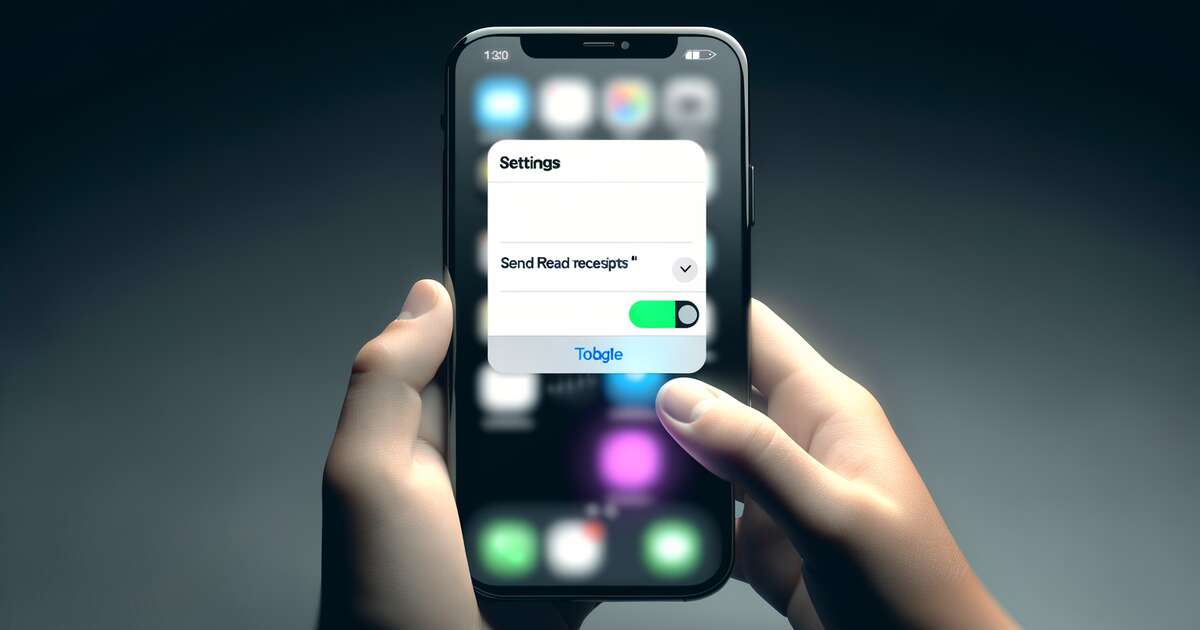
- Look for the ‘Send Read Receipts’ option and toggle the switch to the on position.
Once you’ve switched it on, your iMessage will send notifications to senders when you open their messages. Were you aware that you can also manage this setting for individual conversations? This flexibility allows you to maintain your privacy preferences with ease.
It’s worth noting that enabling read receipts can encourage a more open and prompt communication style, but it also means people know when you’ve seen their messages. Have you considered how this might impact your messaging habits?
Disabling Read Receipts: Why and How to Turn Them Off
Disabling read receipts in iMessage might be something you consider for various privacy reasons. But why exactly would you want to turn off this feature, and how can it be done seamlessly? Let’s dive into the practical reasons for disabling read receipts and the simple steps to achieve this on your iPhone.
Firstly, the primary reason to disable read receipts is to maintain control over your communication. Are you tired of feeling pressured to respond immediately after reading a message? By turning off read receipts, you gain the flexibility to respond on your own terms, without the sender knowing you’ve already seen the message. Isn’t that a relief to have that kind of privacy?
Steps to Disable iMessage Read Receipts
- Open the Settings app on your iPhone.
- Scroll down and tap on ‘Messages’.
- Find the ‘Send Read Receipts’ option and toggle it off.
Just like that, you’ve regained a bit of your privacy. It’s interesting to note that these settings can also be adjusted per contact. This means you can choose who sees when you’ve read their messages and who doesn’t. Flexibility at its best, right? 🕵️♂️
Managing Read Receipts for Individual Contacts in iMessage
Ever realized how managing read receipts for each contact can personalize your messaging experience? Adjusting read receipts for individual contacts in iMessage enables you to have greater control over your privacy and communication. 📲 Whether it’s for a personal time-out from a group chat or maintaining discretion with your work conversations, knowing how to toggle read receipts for specific people comes in handy!
Firstly, open your Messages app and tap on the conversation for which you want to manage read receipts. Here, you can choose to enable or disable the read receipts by simply clicking on the contact’s name at the top, tapping on ‘Info’, and then toggling the ‘Send Read Receipts’ option. This change won’t affect the global read receipts settings but will specifically tailor it for that one contact. 😃 Why not give it a try?
Are you worried about sending the wrong message by leaving receipts on? Or maybe you’re curious about being more assertive in your communication by not leaving anyone on read unintentionally? Tailoring the settings for each contact allows you to refine how you connect with friends, family, and colleagues. Remember, this customized privacy control can be altered at any time to fit your current needs.
Toggle iMessage Read Receipts with ease for each contact and monitor how each adjustment impacts your interactions. Isn’t it fascinating how a simple feature in your phone settings can drastically change your messaging dynamics?
The Privacy Implications of Using iMessage Read Receipts
Turning the read receipts feature on iMessage can have several implications for your privacy. Are you aware of who gets notified when you’ve read their messages?
When you enable read receipts, anyone you text knows exactly when you’ve seen their message. This might seem harmless, but it can lead to concerns about monitoring and boundaries. Imagine the implicit pressure to reply immediately once the sender knows their message has been read. Doesn’t that add a layer of anxiety to your digital conversations?
Furthermore, in professional settings or when dealing with unfamiliar contacts, maintaining a level of message privacy can be crucial. By turning read receipts off, you control the flow of conversation on your terms, which is vital for managing both daily communications and maintaining professional decorum.
- Instant awareness by the sender when a message is read
- Potential for increased pressure to respond
- Ability to manage conversational dynamics more privately
Common Questions
How do you stop someone from seeing you read their text on an iPhone?
To stop someone from seeing that you’ve read their text on an iPhone, you can disable read receipts. To do this, go to ‘Settings’, then scroll down and tap on ‘Messages’. From there, find the ‘Send Read Receipts’ option and toggle it off. This setting will ensure that the senders do not receive a notification when you read their messages. Keep in mind that this change applies to all contacts; you cannot disable read receipts for individual contacts if using iMessage.
Can you read an iMessage without it showing as read?
Yes, you can read an iMessage without it showing as read. One common method is to use the ‘preview’ option on the iPhone lock screen or notification center, where you can read a part of the message without opening the Messages app. Another approach is to disable ‘Send Read Receipts’ under ‘Settings’ > ‘Messages’, which prevents the sender from knowing you have read the message across all messages. Additionally, you can enable Airplane Mode before opening the message, read the text, close the app entirely from the app switcher, and then disable Airplane Mode, which should keep the message marked as unread.
How to turn read receipts off without opening the message?
To turn off read receipts without opening a message, navigate to your iPhone’s ‘Settings’. Under ‘Settings’, scroll down and select ‘Messages’. Here, you will find an option labeled ‘Send Read Receipts’. Simply toggle this option off to disable sending read receipts. This can be done at any time and will prevent senders from seeing if you’ve read their message going forward, without the need to open any messages to adjust this setting.
What happens if send read receipts is off?
If the ‘Send Read Receipts’ feature is turned off on your iPhone, senders will not be notified when you read their messages. They will only see that the message has been delivered. This functionality allows for greater privacy as it prevents others from knowing exactly when you read their messages. It affects all iMessage conversations and there is no option to enable or disable read receipts for specific contacts with this particular setting; it is applied universally to everyone.
Troubleshooting Common Issues with iMessage Read Receipts
Running into issues with your iMessage read receipts not functioning as expected? It’s a common hiccup among users, but fret not—it’s typically a swift fix. Whether your read receipts aren’t sending or you’re not receiving them from others, understanding the root causes can help you resolve these irritations quickly. If you need any help, feel free to use our Free HelpDesk portal!
Common Problems and Quick Fixes
- Check Network Connection: A poor or unstable internet connection often interrupts the sending and receiving of iMessage read receipts. Make sure your device is connected to a reliable network.
- Restart iMessage: Sometimes, simply turning iMessage off and then back on can solve the issue. Go to Settings > Messages and toggle iMessage off and on.
- Update iOS: Running on an outdated version of iOS can cause compatibility issues with iMessage features. Check for any available updates in your device settings and install them.
Have you double-checked these settings and still find yourself facing issues? It might be time to delve deeper into your device settings or perhaps even contact Apple Support for a more tailored solution. 📱 Remember, keeping your device’s software up to date is crucial for all functionalities to operate smoothly, especially for integral features like iMessage.
Final Thoughts: How to Toggle iMessage Read Receipts On and Off
Now that you’ve discovered the ins and outs of how to toggle iMessage read receipts, you can take charge of your messaging privacy like a pro! Isn’t it great to know you have control over who sees when you’ve read their messages? Whether you choose to keep them on or off, you’re all set to manage your iMessage notifications to best suit your lifestyle and privacy preferences.
If you ever run into snags while adjusting your settings, just revisit the troubleshooting tips we’ve covered. Remember, mastering these settings allows you to communicate on your terms. So, why not share this newfound knowledge with friends and family? They might also appreciate taking control of their iMessage settings. 📲


