

Using an Xbox One Controller with Your PC: A Step-by-Step Guide
Are you ready to elevate your PC gaming experience to the next level? Connecting your Xbox One controller to a PC might just be the game-changer you’re looking for! Whether you’re diving into the latest blockbuster games or revisiting old classics, using an Xbox One controller can enhance your play with improved comfort and precision.
But how exactly do you set it up? Fear not! We’ve got a simple, straightforward guide that will walk you through the process of using your Xbox One controller on PC. From the initial setup to troubleshooting common issues, we’ll help ensure you get connected quickly and smoothly. Ready to start gaming with your Xbox controller on your PC? Let’s jump right into the details!
Choosing the Right Xbox One Controller for PC Gaming
Are you planning to jump into the exciting world of PC gaming with an Xbox One controller? 🎮 Selecting the right controller can enhance your gaming experience significantly. It’s not just about picking any controller; it’s about finding the perfect fit for your gaming style!
With various options available, how do you know which Xbox One controller is the right choice for your PC gaming setup? Start by considering the design and features. Do you prefer something classic or with modern tweaks like customizable buttons and triggers? Comfort is king when it comes to extended gaming sessions, so feel is just as crucial as functionality.
Key Considerations When Choosing Your Controller
- Compatibility: Ensure the controller is compatible with your PC. Most controllers are, but checking never hurts.
- Features: Look for features that match your gaming needs, such as programmable buttons or vibration feedback.
- Wired vs. Wireless: Decide if you want a wired connection for reliability or the freedom of a wireless controller.
Each controller type offers unique advantages. Have you thought about how the controller’s weight might impact your gaming? Or maybe the responsiveness of the buttons is a dealbreaker for you? These elements can make or break your in-game performance and enjoyment.
Remember, the ultimate goal is finding a controller that feels like an extension of yourself. It should elevate your gameplay, not hinder it. Why settle for anything less than the best fit for your gaming journey? 🕹️
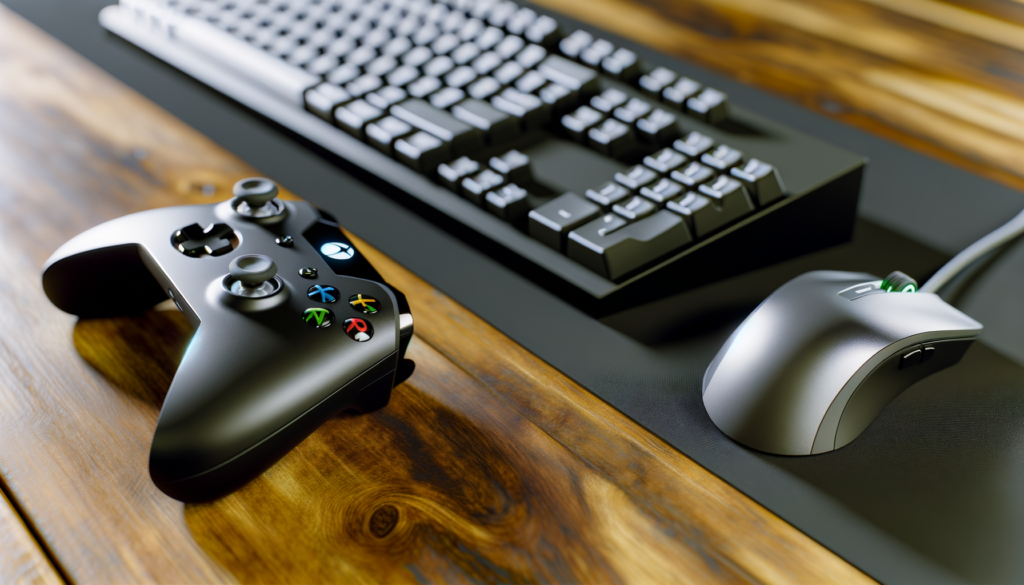
Essential Equipment and Software Requirements
Looking to enhance your gaming experience on PC with your Xbox One controller? Connecting it to your PC isn’t just straightforward; it’s exciting to see how your gaming prowess can level up with a familiar controller! Let’s get into how you can establish this setup smoothly.
Initial Connection: Choose Your Method
The first step is to decide whether you want to connect your controller via USB or wirelessly. Both methods have their perks, but which one suits your gaming setup? A USB cable can provide a direct and reliable connection, while a wireless adapter gives you the freedom to move around. What’s your pick?
USB Connection:
If you opted for a USB connection, simply plug one end of a micro USB cable into your Xbox One controller and the other end into a USB port on your PC. Your computer should recognize the Xbox One controller immediately. Just like that, you’re almost ready to dive into game mode!
Wireless Setup:
If you chose a wireless connection, you’ll need a Xbox Wireless Adapter for Windows. Plug the adapter into a USB port on your PC, press the button on the adapter, then press the sync button on your controller. It’s a quick sync that confirms everything is ready for your next adventure. Aren’t you excited to start gaming with the enhanced flexibility of a wireless setup? 🎮
Wired Setup: Connecting Xbox One Controller to PC
Facing trouble getting your Xbox One controller on PC? You’re not alone! 😟 Many users encounter a few hiccups when trying to enhance their gaming setup. Fear not, because pinpointing and solving these common issues can be simpler than you think! Are you ready to get back to gaming smoothly?
Check Your Connections
Start by checking all your connections. Is your USB cable securely plugged in? (Yes, sometimes it’s just that simple!) If you are using a wireless adapter, ensure it’s properly connected to the USB port. A loose connection might be all that stands between you and your next gaming session.
Driver Updates and Installations
Outdated or missing drivers often cause connectivity issues. Head over to the Device Manager in your control panel, find the Xbox One controller on the list, and check for any available updates. You might need to manually update the driver by downloading it from the official Microsoft website if the auto-update doesn’t kick in.
Reboot and Reconnect
Still no luck? Try the classic ‘turn it off and on again’ method. Reboot your PC and reconnect the controller. This can help resolve any temporary glitches preventing the controller from functioning correctly.

Wireless Setup: How to Pair Your Controller via Bluetooth
Have you ever played a PC game with a keyboard and mouse and wished for a more intuitive gaming experience? Using an Xbox One controller on PC could be the game changer you’re looking for! 🎮
The ergonomic design of the Xbox One controller makes it an excellent choice for long gaming sessions. Its well-placed thumbsticks and responsive triggers provide comfort that can enhance your gaming performance significantly. Plus, the familiar layout means a shorter learning curve if you’re already used to the Xbox console.
- Improved ergonomics for comfortable handling
- Enhanced precision with responsive thumbsticks
- Haptic feedback for a more immersive gaming experience
Moreover, many modern PC games are optimized for controller use, which means you can enjoy a seamless and integrated gameplay experience. Isn’t it great when your equipment just ‘works’ in sync with the games you love? With titles from racing simulators to adventure games, the use of an Xbox One controller opens up a new realm of possibilities for PC gamers. Dive into your favorite games with the tool that might just elevate your gaming prowess to new heights!
Configuring Your Xbox One Controller for Optimal Use
Once you’ve successfully paired your Xbox One controller with your PC, you’ll want to dive into some awesome games that are just amazing with a controller. What kind of games shine with the added precision and comfort of an Xbox controller? Let’s explore some top picks that promise enhanced gameplay and excitement!
Action-Packed Adventures
- Dark Souls III – Test your resilience in this challenging and rewarding dark fantasy universe.
- Red Dead Redemption 2 – Immerse yourself in one of the most detailed and expansive open-world games.
Racing and Sports Excitement
- Forza Horizon 4 – Experience dynamic seasons in a shared open-world while driving over 450 cars.
- FIFA 21 – Feel next-level realism in every match with the controller’s nuanced haptic feedback.
These are just the tip of the iceberg. Many more games, from indie gems like ‘Hollow Knight’ to AAA titles such as ‘Assassin’s Creed Odyssey’, offer enhanced experiences with a controller. Have you tried any of these games with your Xbox One controller on PC yet? If not, you’re in for a treat! 🎮
Common Questions
Can I use my Xbox One controller for PC?
Yes, you can use your Xbox One controller on PC. Microsoft has equipped the Xbox One controllers with compatibility for Windows PCs. You can connect your controller to your PC via USB, using the Xbox Wireless Adapter for Windows, or through Bluetooth, if your controller supports it. This makes it a versatile option for a variety of games.
Why won’t my Xbox controller connect to my PC?
There could be several reasons why your Xbox controller is not connecting to your PC. Common issues include driver problems on your PC, a low battery in the controller, or connectivity issues with USB or Bluetooth. Ensure that your controller is charged, your PC’s drivers are updated, and that you are using a working USB port or Bluetooth connection. If issues persist, resetting the controller or troubleshooting your Bluetooth or USB connection might be necessary.
Is Xbox controller fully compatible with PC?
Yes, the Xbox controller is fully compatible with PC. Most modern Xbox controllers, including those from the Xbox One and Xbox Series X|S, connect seamlessly with PCs using Windows. They can be connected via USB, Xbox Wireless Adapter, or Bluetooth, and are supported by most PC games that use controllers. Microsoft often updates the controller software to ensure enhanced compatibility and additional features, making it a popular choice among PC gamers.
Is Xbox One Controller good for PC gaming?
The Xbox One controller is highly regarded as a good option for PC gaming due to its comfortable ergonomic design, responsive controls, and robust build quality. It’s compatible with a vast array of PC games and is supported natively by many modern Windows games. The controller offers precise control and is versatile for various gaming genres, whether it’s first-person shooters, racing games, or platformers, hence making it a favorite among PC gamers.
Troubleshooting Common Issues with Xbox Controllers
Hooking up your Xbox One controller on PC should be a breeze, but what if things don’t go as planned? Don’t worry; we’ve got you covered! 🛠️ Here’s a rundown on troubleshooting some common issues that might pop up.
First off, if your controller isn’t recognized by your PC, double-check your connections. Are your USB ports functioning correctly? Perhaps try a different port or cable. Also, for a wireless connection, ensure your Bluetooth is active and your controller is adequately charged—sounds simple, but it’s a frequent oversight!
Experiencing lag or unresponsive buttons? This can really throw off your game. To fix this, updating your Xbox One controller PC drivers might do the trick. Just head over to the Device Manager in Windows, right-click on your controller, and select ‘Update driver’. Quick and easy!
- Check USB or Bluetooth connections
- Update controller drivers
- Reset the controller by holding down the power button for 10 seconds
Still facing issues? A reset might be necessary. Hold down the Xbox button on your controller for about 10 seconds until it turns off. Power it back on, and you might just be ready to roll. If problems persist, consider checking the official Xbox support page for more detailed guidance. Have you checked if there are any firmware updates available directly from the Xbox Accessories app?
Final Thoughts: Using an Xbox One Controller on PC
Now that you’re equipped with the knowledge on connecting your Xbox One controller to your PC, the realm of PC gaming with enhanced control is at your fingertips. Isn’t it exciting to think about how this setup will change your gaming experience? Whether you’re navigating the vast worlds of RPGs or battling it out in the competitive arenas, the Xbox One controller is your new best ally. 🎮
Remember, a smooth gaming session isn’t just about the setup; it’s about diving into those games with the right gear. So why wait? Grab your Xbox One controller, connect it, and dive into a more immersive gaming experience today. And if you hit a snag, just revisit our easy troubleshooting tips. Happy gaming, and may your aim be ever true!


