

How to Build a PC: The Ultimate Beginners Guide
Thinking about taking the plunge and learning to build a PC? You’re in the right place! Building your own computer from scratch is not only a fantastic way to save money, it’s also incredibly satisfying. Imagine turning it on for the first time knowing you put every piece together yourself—how cool would that be? Whether it’s choosing the perfect components, assembling them, or troubleshooting, this guide will walk you through each step with clarity and detailed insights.
From selecting the right motherboard to installing the final screw, every step in the process to build a PC is crucial. Don’t worry if you’re not a tech wizard; our guide is crafted especially for beginners. You’ll learn the differences between SSDs and HDD, what RAM does, and why the power supply is more important than you might think. Ready to embark on this DIY tech adventure and perhaps even upgrade your gaming or work setup? Let’s dive in and start building!
Choosing the Right Components for Your PC Build
When you decide to build a PC, the components you choose are crucial for its performance and longevity. But how do you decide which parts are right for your needs and budget? Let’s break it down.
Processor (CPU): The Brain of Your Computer
The CPU is essential as it dictates the processing power of your PC. Are you into gaming, or are you a professional video editor? Higher-end CPUs will benefit performance-heavy tasks, but a mid-range processor is sufficient for general computing tasks. AMD and Intel offer a wide range of options to suit every need.
Graphics Card (GPU): Visual Powerhouse
The graphics card is vital for gamers and creative professionals. It’s responsible for rendering images and video. If visuals are a priority, investing in a high-quality GPU is a must. However, for standard computer tasks, the integrated graphics of modern CPUs might be enough.
Memory (RAM): Multitask with Ease
Choosing compatible and high-performance components for your PC build can seem daunting, but with a little research and understanding of your needs, you can create a machine that fits perfectly with your digital lifestyle. What components are you considering for your custom PC build?

Step-by-Step Guide to Assembling Your PC
Ready to build a PC? It might sound daunting, but assembling your computer can be a rewarding experience. Here’s a straightforward guide to put all those components together! 🛠️
1. Prepare Your Workspace
First things first, find a clean, static-free space for assembly. A large table or hard surface works great. Make sure to have enough lighting and maybe even a magnifying glass handy to see the small components clearly.
2. Install the CPU
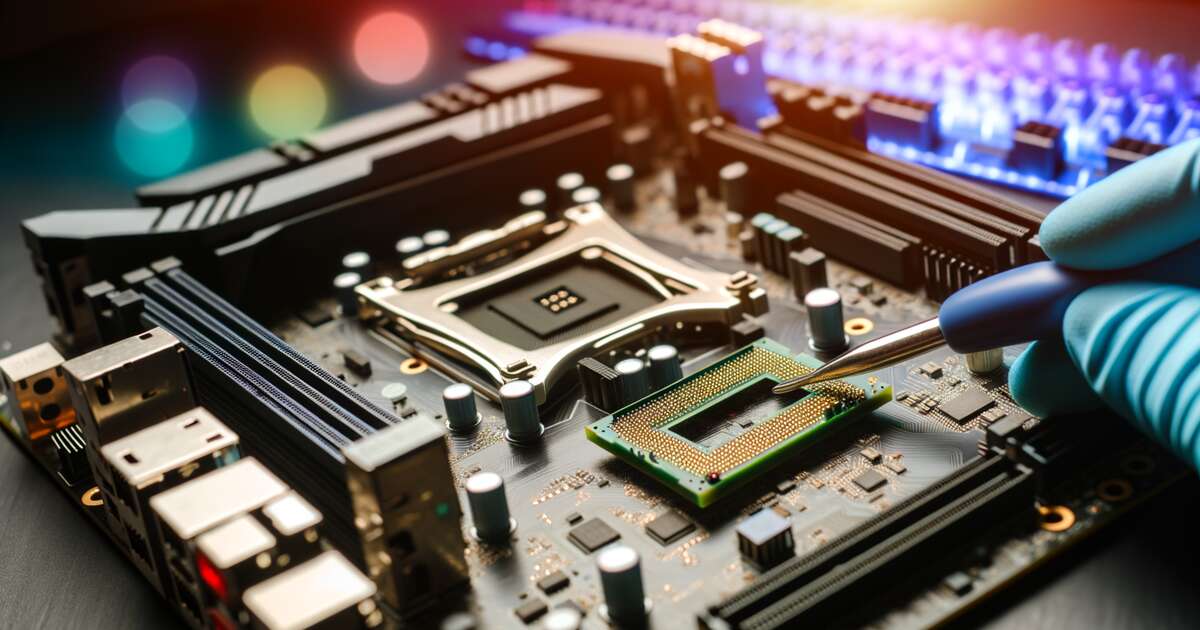
Carefully place the CPU into the socket on your motherboard. Align it properly to avoid bending the pins—there’s usually an arrow on one corner to guide you. Once it’s settled, secure it with the socket’s lever.
3. Add RAM
Next up, RAM! These sticks can only go in one way, so no need to force them. Find the slots keyed to your type of RAM and press down evenly until the clamps click.
4. Mount the Motherboard
Before placing the motherboard in the case, don’t forget to install the I/O shield in the back. Then, align the motherboard with the standoffs in the case and screw it in securely. Are you starting to see it come together?
Installing the Operating System and Drivers
Once the hardware assembly of your new computer is complete, the next big step in the process to build a PC is installing the operating system (OS) and the necessary drivers. This can often seem daunting, but with the right guidance, it’s a breeze! 🌬️
Choosing the Right Operating System
The choice of an operating system depends on your personal or professional needs. Are you a fan of Windows for its user-friendly interface? Or do you lean towards Linux for its robust security features? Make sure the OS you choose is compatible with the components you’ve selected for your PC.
Installing the OS
Installation of the operating system is straightforward if you follow the instructions. You will typically need to boot from an installation media, which can be a USB drive or a DVD if you still use one. Have you ever wondered how it feels to watch your PC come to life with a fresh OS? 🖥️
Installing Drivers
Now, don’t forget about the drivers! Drivers are crucial as they ensure that your PC’s hardware components and peripherals work optimally with the operating system. Most hardware manufacturers provide a CD with drivers, but it’s always best to download the latest versions from their websites. This step is vital for the smooth functioning and optimal performance of your new PC.
Optimizing Your PC Settings for Peak Performance
Once you’ve assembled your PC and installed the operating system, it’s time to tweak the settings for optimal performance. But what exactly does that entail?
Optimizing your PC’s settings can vastly improve your computing experience, especially if you’re looking to build a PC that handles high-demand tasks like gaming or video editing. Focusing on system settings such as power options, visual effects, and startup programs can make a significant difference.
Adjust Power Settings
To squeeze every ounce of performance out of your build, adjusting your PC’s power settings is crucial. Set your power plan to ‘High Performance’ to prevent the system from lowering performance to save energy. This is particularly important if you’re using the PC for gaming or other resource-heavy applications.
Streamline Visual Effects
Windows offers many eye-catching visual effects that, while attractive, can slow down your machine. By adjusting the System Properties > Advanced > Performance Options, you can choose to optimize for best performance, which will turn off unnecessary animations and shadows that consume resources.
Manage Startup Programs
Too many startup programs can drastically slow down your PC’s boot time. Do you really need all those apps to start automatically? Head into the Task Manager and disable startup programs that aren’t essential. This simple step can significantly speed up your system’s startup process and overall performance.
Common Questions
Is it cheaper to build your own PC?
Building your own PC can often be cheaper than buying a pre-built one from a retailer, especially if performance is a priority. When you choose to build, you can select components based on your specific needs and budget, potentially avoiding the premium that manufacturers add for assembly and brand. Additionally, independent purchasing of parts allows for searching the best deals and purchasing components over time during sales, further reducing the overall cost. However, prices can vary based on market conditions and hardware availability, so savings are not guaranteed.
Can you build a decent PC for $1000?
Yes, you can build a decent PC for $1000. With careful selection of components, $1000 can secure a good quality processor, a decent video card, and other necessary components like a motherboard, RAM, and storage. In this price range, one can expect to assemble a system capable of handling general productivity tasks quite smoothly and supporting respectable performance in gaming at 1080p. However, prices for certain components like GPUs can fluctuate heavily, so catching good deals or opting for slightly older or mid-tier hardware may be necessary to stay within budget.
How to build a PC for gaming for beginners?
Building a PC for gaming as a beginner involves several key steps, starting with setting a budget and determining the gaming performance goals. Beginners should educate themselves about the basic components of a PC, such as the CPU, GPU, motherboard, RAM, storage drives, power supply, and case. There are numerous guides and tutorials online that can provide step-by-step instructions. It’s important to ensure compatibility among components and check for the games that will be played. Additionally, acquiring the appropriate tools for assembly, such as screwdrivers, and taking precautions like grounding oneself to avoid electrostatic discharge are vital for safely assembling a PC. Starting with a basic setup and upgrading over time can also be an effective way to balance budget and performance needs.
Does Best Buy build PCs?
Best Buy offers services through the Geek Squad, which includes support for PC setup and some customization if parts are provided. They assist in setting up newly bought systems, installing new components, and upgrading existing ones. However, they do not typically build PCs from scratch based on individual part selection by customers. For those seeking entirely custom-build PCs, relying entirely on Best Agent might not be feasible, and they might need to consider other specialized services or build it themselves with the help of online tutorials.
Troubleshooting Common PC Assembly Issues
Assembling your own PC can be incredibly satisfying, but what do you do when you hit a snag? It’s not uncommon to encounter hurdles during the assembly process, especially if you’re a beginner. Let’s discuss some common PC assembly issues and how to swiftly tackle them, ensuring you don’t lose momentum in your build.
Issue #1: The PC Won’t Power On
Ever assembled your PC only to find it won’t turn on? First, check your power supply connections. Ensure that all cables are securely connected and that your PSU switch is turned on. It’s a simple check but often overlooked. If that’s all in order, the problem might be a faulty component or incorrect motherboard mounting.
Issue #2: Continuous Beeping Sounds
Hearing a series of beeps from your motherboard can be alarming, but it’s actually a helpful clue. These beep codes are meant to indicate specific hardware issues. Refer to your motherboard’s manual to decode what these sounds mean – common issues often relate to RAM or graphics card errors.
Issue #3: Overheating
If your PC starts up but begins to overheat, it’s crucial to shut it down to prevent damage. Check if your cooling system is properly installed. Is your CPU cooler firmly attached? Are all fans working and not obstructed? Sometimes, reapplying thermal paste can provide a simple fix to overheating issues.
Tackling these issues might seem daunting at first, but with a calm and methodical approach, you’ll often find the solution is simpler than expected. Isn’t it reassuring to know that most assembly glitches can be fixed with a bit of troubleshooting? Keep this guide handy, and you’ll be powering through your PC build with newfound confidence! 👍
Final Thoughts: How to Build a PC: The Ultimate Beginners Guide
Now that you’ve ventured through the steps to build a PC, aren’t you feeling like a tech whiz already? Building your own computer is not only a rewarding experience but also an excellent way to understand and appreciate the technology we often take for granted. With each component you selected and assembled, you’ve taken a big step in demystifying the magic behind these powerful machines.
Remember, the journey doesn’t end here! There’s always more to learn and optimize to ensure your machine runs at its best. Keep experimenting with different settings, update your system regularly, and don’t hesitate to troubleshoot if things aren’t going as planned. Your new skills in how to build a PC will serve you well, whether it’s upgrading your current setup or helping a friend out. Dive in, enjoy the process, and who knows what incredible projects you’ll tackle next? 😄


