

How To Take A Screenshot On Your Android Device
Ever struggled to capture that perfect moment on your phone? Whether it’s saving a snapshot of a video call with friends, keeping a record of important information, or just capturing your high score in a game, learning how to take a screenshot on your Android device unlocks a whole new level of functionality. 📱
It might seem like a simple task, but did you know there are several ways to take a screenshot Android style depending on your device model and version? Some methods even include features like scrolling screenshots. Intrigued? Let’s dive into the straightforward steps to master this essential smartphone skill.
Not only is taking a screenshot on Android quick and easy, but it’s also incredibly useful for sharing moments that matter. From gamers to business professionals, everyone can benefit from knowing this handy trick. So, are you ready to become a screenshot pro? Let’s get started!
Understanding Different Android Screenshot Methods
Capturing what’s on your Android screen can be handy for a variety of reasons, from saving a memorable conversation to capturing a high score in a game. But did you know there are several methods to take a screenshot Android devices offer? Let’s explore the various ways to do this, ensuring you find the easiest route every time!
Using the Traditional Button Method
The most common method involves using your device’s physical buttons. Typically, you press and hold the power button and the volume down button simultaneously. After a brief moment, the screen will flash, indicating that the screenshot has been captured. Simple and reliable, isn’t it?
Exploring Swipe Gestures
Many newer Android models support swipe gestures for screenshots. For instance, you can use a three-finger swipe down on the screen to capture whatever is displayed. This method is not only quick but also avoids the awkwardness of fumbling around with buttons, especially if you’re handling a larger device.
Using Accessibility Features
Accessibility features often include options for taking screenshots. This can be a great aid if you find the physical buttons hard to press or if you are looking for a hands-free alternative. To configure this, dive into the Accessibility settings on your device and look for the ‘Screenshot’ option, which can generally be activated with a tap or a voice command.
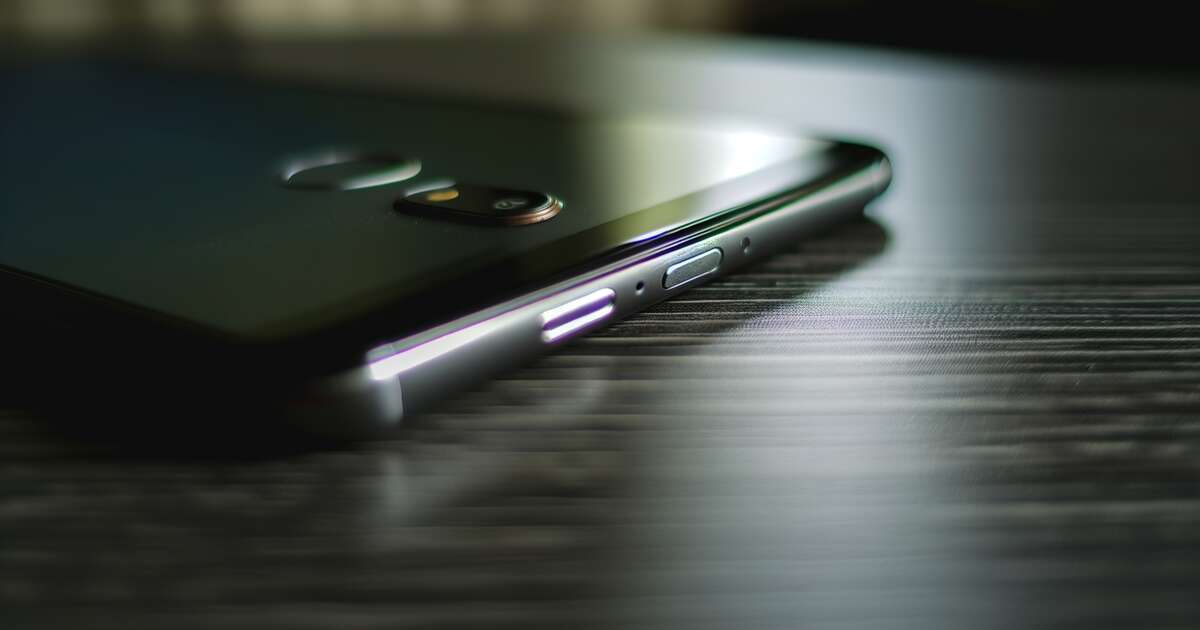
Using Physical Buttons to Capture Screenshots
Capturing a screenshot on your Android device using physical buttons is a quick and universally available method. Whether you’re trying to save a high score, capture an important message, or just keep a digital receipt, knowing the right button combo can feel like a little magic trick in your pocket!
So, how exactly do you take that screenshot? For most Android phones, it involves pressing and holding the Power and Volume Down buttons simultaneously. It’s a simple technique but requires a bit of timing. Pressing these at the same time for about 2 seconds will usually do the trick. Did you get it right on your first try?
- Locate the Power button.
- Find the Volume Down button.
- Press and hold both buttons simultaneously for 1-2 seconds.
After you press the button combination correctly, you’ll hear a shutter sound or see a visual indication that a screenshot has been taken 📸. This captured image is then saved automatically in your device’s photo gallery, where you can edit, share, or delete it as needed. Isn’t technology fabulous? Remember, if these button combinations don’t work, your device might have a different method or require enabling certain settings.
Swipe Gestures for Screenshots on Android
Have you ever quickly needed to capture something on your screen? Swipe gestures for taking screenshots on Android devices offer a fast and intuitive way to do exactly that! 😎 Let’s explore how you can utilize this simple motion to snap a screenshot in no time.
Firstly, it’s essential to check if your Android phone supports swipe gestures for screenshots. Most modern Android phones do, but the activation method might differ slightly. Typically, you can take a screenshot by swiping the edge of your hand across the screen from one side to the other. It’s as easy as making a brushing motion—just like you’re wiping something off your screen!
Wondering why you should use swipe gestures? Well, they are incredibly handy when you’re juggling multiple tasks. Imagine you’re reading a thrilling article or seeing a must-share meme; a quick swipe captures the moment without having to fumble for button combinations. Plus, it minimizes disruptions, letting you stay immersed in your activity. Isn’t that convenient?
- Check if your device supports swipe gestures to take a screenshot Android.
- Activate the feature through your phone’s settings under ‘Motions and Gestures.’
- Simply swipe your hand across the screen to capture what’s displayed.
Remember, not all Android devices might support this feature or might require you to enable it manually in the settings menu. Once set up, this gesture can become second nature as you effortlessly capture what’s on your screen. Why not give it a try and see how it streamlines your screenshot experience?

Access and Share Your Android Screenshots
Once you’ve mastered the skill of taking a screenshot on your Android device, what’s next? Accessing and sharing these screenshots can be just as simple and important—especially when you need to quickly show something to a friend or save it for later reference. 📲
Typically, after you take a screenshot Android devices will immediately offer a short preview and options to share or edit. Isn’t it super convenient? But, if you miss that, you can always find your screenshots filed neatly in the Screenshots folder within your Gallery or Photos app.
Sharing Made Simple
Sharing your screenshots is straightforward. From your Gallery, just tap on the screenshot you want to share, and you’ll see the share icon. This will open up all the possible sharing options your phone supports—whether it’s via email, social media, or direct messaging. Easy peasy, right?
But what if you’re organizing a tutorial or a presentation? In such cases, consider sending these screenshots directly to your connected cloud storage, like Google Drive or Dropbox, ensuring they’re securely backed up and easily accessible from any device.
Remember, consistency in naming your screenshot files can also save you a lot of time when trying to retrieve them later. Do you usually rename your files right after taking screenshots? If not, give it a try! It could streamline your workflow even further.
Troubleshooting Common Screenshot Issues
Encountering issues when trying to take a screenshot Android-style? It’s not just you! Many Android users face common snags that can easily be fixed with a bit of know-how. Let’s delve into some common problems and their solutions to get your screenshot game back on track.
Check Your Button Functionality
First things first, ensure your physical buttons are in good working order. If your volume down or power buttons seem unresponsive, there’s a chance they are to blame. A quick clean can often do the trick. Have you considered that a case or protector might be obstructing the buttons?
Software Glitches and Updates
Software issues can also prevent successful screenshots. Is your Android up to date? Sometimes, all you need is to install the latest updates to fix bugs. Restarting your device can also clear temporary glitches that might block the screenshot function.
App Permissions and Conflicts
Apps can sometimes interfere with the ability to take a screenshot Android devices offer. Review apps that have overlay permissions or that are always running in the background. Modifying these settings might be the key to solving your issue.
- Power and volume button inspection
- Software updates and device restart
- Reviewing app permissions and conflicts
Common Questions
Where is the screenshot button on Android phone?
The location and combination of buttons to take a screenshot on an Android phone can vary depending on the brand and model. Usually, a screenshot can be taken by pressing the Power button and the Volume Down button simultaneously for a few seconds. On some devices, you can also take a screenshot by swiping the screen with the side of your palm or using other gestures. Additionally, newer Android phones might include a screenshot option in the quick settings menu, which can be accessed by swiping down from the top of the screen. Check your phone’s user manual or support website for model-specific instructions.
Exploring Screenshot Apps for Enhanced Features
While the built-in options to take a screenshot on Android devices are quite handy, exploring screenshot apps can unlock a treasure trove of enhanced features that can elevate your screencap game. Wondering what additional functionalities you could tap into?
Screenshot apps often come with a suite of editing tools, allowing you to annotate or blur sensitive information right after you capture the screen. This means not only can you take a screenshot Android-style with simplicity, but you also enhance and share them with extra flair and in record time! 🚀
- Automatic cloud uploads for easy access and sharing
- Scrolling screenshots to capture an entire webpage or document
- Screen recording features to capture live actions on your screen
With these tools, screenshots can transform from mere images into powerful tools for communication, instruction, and even entertainment. Have you ever needed to share a quick guide or snap a funny glitch? A good screenshot app can be your best friend for tasks like these.
Final Thoughts: How To Take A Screenshot On Your Android Device
Ready to become a screenshot guru on your Android device? With the different methods and tips you’ve learned today about how to take a screenshot Android, you’re all set to capture everything from crazy text conversations to high scores in your favorite games. Isn’t it amazing how a simple screenshot can preserve a moment or detail forever?
Whether you’re using physical buttons, swipe gestures, or a cool app that adds funky features, the power is in your hands. Remember, sharing is just as important — get your screenshots out there! Think of all the social media buzz and helpful info swaps you can engage in with just a few taps. So, what will you capture first? 📸✨


