

Troubleshooting Tips: What to Do If Your Laptop Freezes
Is there anything more frustrating than when your laptop freezes right in the middle of an important task? Whether you’re crunching numbers for a deadline, editing photos, or midway through an epic movie, a frozen laptop can truly test your patience. But don’t worry, we’ve got you covered! In this guide, we’ll dive into some effective troubleshooting tips that will help you get back on track swiftly. 🚀
Understanding why your laptop freezes is the first step to fixing the problem. Could it be a software issue, an overtaxed system, or maybe it’s time for an upgrade? Whatever the cause, our easy-to-follow tips will help you diagnose and resolve the issue. Plus, we’ll share some preventative measures to help ensure your laptop stays freeze-free in the future. Ready to get your laptop running smoothly again? Let’s get started!
Common Causes Why Your Laptop Might Freeze
Exploring the common causes for why your laptop might freeze can be a game changer in maintaining your device. But why does it occur in the first place? Is it a hardware issue, a software glitch, or perhaps something else entirely?
One of the primary reasons your Laptop Freezes could be due to overheating. When your laptop overheats, it can throttle its performance or freeze entirely to prevent damage. Think about it; is your laptop really hot when it freezes?
- Too many applications running simultaneously can strain your laptop’s resources, leading to freezes.
- Outdated drivers or operating system can also cause compatibility issues that might result in the laptop freezing.
- Possible malware infection, which can interfere with system operations and cause significant slowdowns or freezes.
Identifying these triggers is crucial to decide the next steps in troubleshooting or upgrading. Regularly monitoring your laptop’s temperature and keeping the software up to date are simple practices that can make a big difference. Have you checked your drivers recently, or scanned your device for viruses? 🤔

Initial Steps to Take When Your Laptop Freezes
Facing a frozen laptop can be quite frustrating, especially if you’re in the middle of an important task. When your laptop freezes, your first reaction might be to panic, but don’t worry! There are several initial steps you can take to potentially resolve the issue.
Check for Overheating
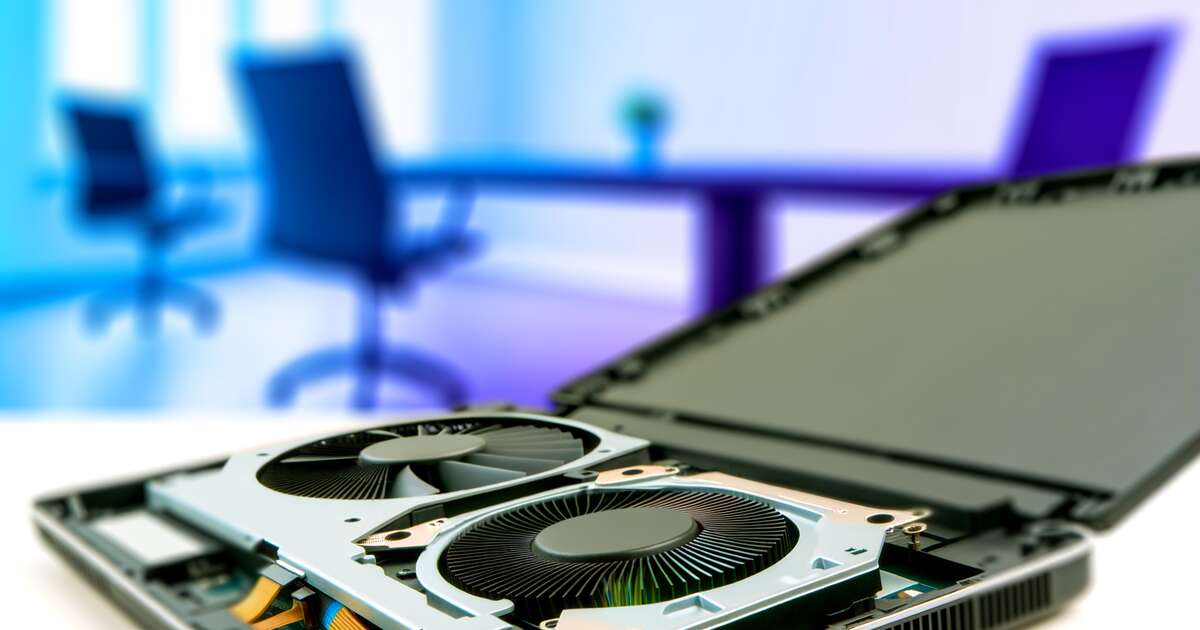
One of the most common culprits behind a laptop freeze is overheating. Is your laptop feeling hotter than usual? Quickly check to see if the cooling vents are blocked and if the fan is working properly. Elevating your laptop slightly can improve air circulation and potentially cool it down.
Close Unnecessary Applications
Often, laptops freeze due to overcrowded RAM. Look at the task manager (Ctrl+Alt+Del on Windows, Command+Option+Esc on Mac) to see if any applications are consuming an unusually high amount of memory. Closing these can free up resources and may unfreeze your laptop.
Perform a Soft Reset
If the above steps don’t work, a soft reset might be necessary. Don’t worry; it’s simple and safe! Just hold the power button for about 10 seconds until the laptop shuts down, then turn it back on. This can often resolve minor glitches causing the freeze.
Remember, these steps are just the beginning of troubleshooting a frozen laptop. If these don’t resolve the issue, it may be time to dive into more advanced troubleshooting techniques. Isn’t it great to have some tricks up your sleeve before things escalate? 🛠️
Advanced Troubleshooting Techniques for Frozen Laptops
When your laptop freezes, it can feel like hitting a brick wall. What do you do when the initial steps don’t work? It’s time to dive into advanced troubleshooting techniques that can help bring your device back to life. Aren’t you curious to learn a few expert tips that could save you a trip to the repair shop?
Utilizing System Restore Points
One effective method to consider is the use of system restore points. This feature can roll your laptop’s system back to a previous state when it was working perfectly. Have you set up system restore points? If not, now might be a good time to start.
Checking for Malware and Viruses
Another crucial aspect is to check for any malware or viruses that might be causing your system to hang. Running a thorough scan using a reliable antivirus program can help identify and eliminate these unwanted guests.
Hardware Diagnostic Tools
Sometimes, the issue could be related to hardware. Utilizing built-in hardware diagnostic tools, if your laptop manufacturer provides them, can pinpoint issues with your hard drive, memory, or other components that might be causing the freeze.
Consulting the Event Viewer
Lastly, Windows users can utilize the Event Viewer to identify specific system errors that led to the freeze. This tool logs all critical system occurrences and can be invaluable for pinpointing the root cause of your laptop’s issues. Next time your laptop freezes, will you feel more prepared to tackle the problem head-on?
By mastering these advanced troubleshooting techniques, not only can you resolve when your Laptop Freezes, but you can also enhance your overall computing experience. Remember, understanding your laptop’s behavior is key to maintaining its health and performance! 🛠️
How to Prevent Your Laptop from Freezing in the Future
Now that we’ve explored what to do when your laptop freezes, it’s crucial to think about how we can prevent these frustrating freezes in the future. After all, wouldn’t you rather enjoy a smooth and efficient laptop experience? Let’s dive into some proactive steps you can take to minimize the chances of your laptop freezing again.
Regular System Updates
Are you keeping your operating system and software up to date? Ensuring that your laptop is running the latest versions of its OS and applications can significantly reduce the likelihood of it freezing. These updates are not just about new features; they often include critical patches that fix bugs and improve stability.
Optimize Your Startup Applications
Every time you start your laptop, several applications load simultaneously. Too many of these applications can slow down your boot process and potentially lead to freezing issues. Simplify your startup by disabling non-essential programs. This action not only speeds up the start time but also reduces the strain on your system resources.
Maintain Adequate Hard Drive Space
Running low on hard drive space can also be a culprit in causing performance setbacks like freezing. Make sure to regularly clean up unnecessary files and uninstall programs you no longer use. Maintaining at least 10% free space on your drive is a good practice for optimal performance.
Consider Adding More RAM
If you find your laptop freezing while multitasking or working with resource-intensive applications, it might be time to upgrade your RAM. Additional memory can provide a much-needed boost to your system’s handling capabilities, helping to prevent freezes that occur due to exhaustion of available RAM.
Must-Have Software to Diagnose and Fix Laptop Freezes
Experiencing a laptop freeze can be frustrating, especially if you’re in the middle of an important task. Fortunately, there are several software tools specifically designed to diagnose and fix issues that could be causing your laptop to freeze. These tools not only help in identifying the problem but also play a crucial role in ensuring your system runs smoothly.
Top Diagnostic Tools for Resolving Laptop Freezes
- CCleaner: Best for cleaning up your laptop and optimizing performance.
- Malwarebytes: Essential for scanning and removing malware that can cause freezes.
- Sysinternals Suite: Provides advanced utilities to troubleshoot Windows systems especially when debugging freezes.
Why settle for annoyance and downtime? Tools like CCleaner help by removing unnecessary files and cleaning up your registry, potentially fixing factors that lead to system instability. Malwarebytes, on the other hand, targets the malicious programs that might be eating up your system’s resources. Have you ever used these tools before to fix a freezing issue? 😊
For those who are comfortable with a bit more technical detail, the Sysinternals Suite offers a range of advanced tools. These can give you insights into which processes and applications are using the most resources, helping you pinpoint potential causes of freezes. With the right tools at your disposal, you’re well on your way to a smoother, more reliable laptop experience!
Remember, while these software can provide quick fixes, they don’t replace the necessity for regular system maintenance and updates. Keeping your software up to date and your hardware in good condition is key to avoiding freezes and other computer issues in the first place.
Common Questions
How do I fix my laptop from freezing?
To fix a laptop that is freezing, start by performing a soft reset which means simply restarting the laptop. If restarting doesn’t work, check for software updates, as an outdated system can cause performance issues. Close any unresponsive applications through the Task Manager (Ctrl+Alt+Del). If the problem persists, run a virus scan to rule out malware as the cause. Additionally, check the laptop’s ventilation and make sure it’s not overheating. Removing temporary files and freeing up disk space can also help improve your laptop’s performance.
How do I unfreeze the laptop?
To unfreeze a laptop, you can try several methods. Firstly, press and hold the power button for a few seconds until the laptop shuts down, then restart it. If the system is unresponsive to the power button, unplug the charger and remove the battery if possible. Wait a few seconds before reinserting the battery and powering on the device. You can also try pressing Ctrl+Alt+Del to see if you’re able to access the Task Manager and end non-responsive applications. If these steps do not work, booting the laptop in Safe Mode may allow you to troubleshoot and fix the underlying issues.
How do you unfreeze your computer when control alt delete doesn’t work?
If your computer is frozen and Ctrl+Alt+Delete does not work, you may need to perform a hard reset. Hold down the power button for about 10-15 seconds until the computer shuts down completely, then restart it. This method forcefully closes all running programs and can resolve temporary glitches causing the freeze. After rebooting, observe if the issue recurs. If it does, consider booting the computer in Safe Mode to diagnose hardware or software problems causing the freezing. In Safe Mode, you can perform system repairs and update drivers which might solve the issue.
Why is my laptop stuck at the lock screen?
A laptop stuck at the lock screen can be due to several reasons including software glitches, corrupted user profile, or pending updates that didn’t install correctly. Begin by restarting your laptop to refresh the operating system and potentially fix any minor software faults. If the issue persists, try booting in Safe Mode which limits the operating system to its core components. In Safe Mode, you can restore the system, check for Windows updates, or create a new user account if the user profile is corrupted. Another useful approach is to run system diagnostics to check for hardware issues.
When to Seek Professional Help for Laptop Issues
Encountering a situation where your laptop freezes can be quite frustrating, especially when you’re in the middle of important tasks. While there are several troubleshooting steps that you can handle on your own, there are certain times when it’s wise to seek professional help. But how do you know when that moment has arrived?
Firstly, if the basic troubleshooting methods have not resolved the Laptop Freezes issue, it might be a signal that the problem is beyond a simple fix. Frequent crashes or a laptop that freezes continually over a short period can indicate deeper hardware or software complications that require expert intervention.
Additionally, if you notice any unusual noises coming from your laptop’s hardware, like clicking sounds from the hard drive, it’s a cue that the problem could be serious. Hardware issues can escalate quickly and risking more damage by delaying professional repairs might end up costing you more in the long run. Do you really want to take that risk?
- Persistent freezing, even after implementing known fixes
- Unusual physical sounds from the laptop, such as clicking or whirring
- Blue screen errors accompanied by cryptic error messages
Taking your laptop to a certified technician or a trusted repair service not only ensures a proper diagnosis but also extends the lifespan of your device. Remember, the goal is to get your laptop back to optimal working condition, so seeking professional help at the right time is crucial. Why not ensure peace of visuals and performance by making the smart choice? 🛠️
Final Notes: Troubleshooting Tips: What to Do If Your Laptop Freezes
Armed with these troubleshooting tips, laptop freezes should no longer send you into a panic! Remember, understanding the common causes and knowing the right steps to take can make a big difference in managing and preventing these frustrating situations. Isn’t it reassuring to know you’re now equipped to handle if your laptop freezes?
As you apply these techniques, keep in mind that regular maintenance and being proactive with software updates are your best defense against future freezes. Whether it’s employing basic fixes, diving into advanced troubleshooting, or deciding when to call in the pros, your journey to a smoother, more reliable laptop experience starts here. Ready to put these insights into action and ensure your laptop runs smoothly? 🚀


