

Boost GPU Performance: Update NVIDIA and AMD Drivers Now
Are you ready to transform your gaming and graphics experience? Update NVIDIA AMD drivers now and witness a significant enhancement in your GPU’s performance. It’s not just about playing games; it’s about experiencing them in their full glory with unmatched visual fidelity and silky-smooth frame rates. Boosting your GPU’s capabilities can be the game-changer you’ve been looking for. 🚀
Why settle for less when you can achieve the best? By updating to the latest NVIDIA and AMD drivers, you take a crucial step towards optimizing your hardware’s potential. Whether it’s rendering complex 3D scenes, crunching video editing tasks, or ensuring that every pixel in your favorite game is as sharp as intended, the right driver update can make all the difference. Are you ready to make the upgrade and see the benefits first-hand?
Keep reading to discover simple steps on how to update your drivers efficiently and effectively, ensuring you’re always at the top of your digital game. With the most recent updates, prepare to unlock new features, enhance security, and improve compatibility. Don’t miss out on achieving peak performance – the power is just an update away!
Why Updating Your GPU Drivers Is Crucial for Performance
Ever hit a snag with a game only to find out that a simple driver update could fix it? Updating your GPU drivers is one of those easy, yet critical, tasks that can significantly enhance your computer’s performance, especially for tasks like gaming and high-definition video playback. But why is this step so important?
First off, manufacturers like NVIDIA and AMD are constantly tweaking their software to squeeze out more speed and to squash bugs. When you update NVIDIA AMD drivers, you’re not just updating software; you’re enhancing the way your graphics card communicates with your system’s hardware and software. This can lead to noticeable performance improvements and fixes for compatibility issues or bugs that might have been plagging your system.
- Improved gaming performance with higher frame rates 🎮
- Enhanced compatibility with new and upcoming games 🆕
- Fixes for software bugs and vulnerabilities 🔧
Think about it: Aren’t smoother visuals and quicker load times worth the small effort it takes to keep your drivers up to date? Plus, updating your drivers can also protect your system from potential security vulnerabilities that could be exploited by hackers. So, how often do you check for new driver updates? Keeping your GPU drivers updated is a proactive step that every tech enthusiast should take!
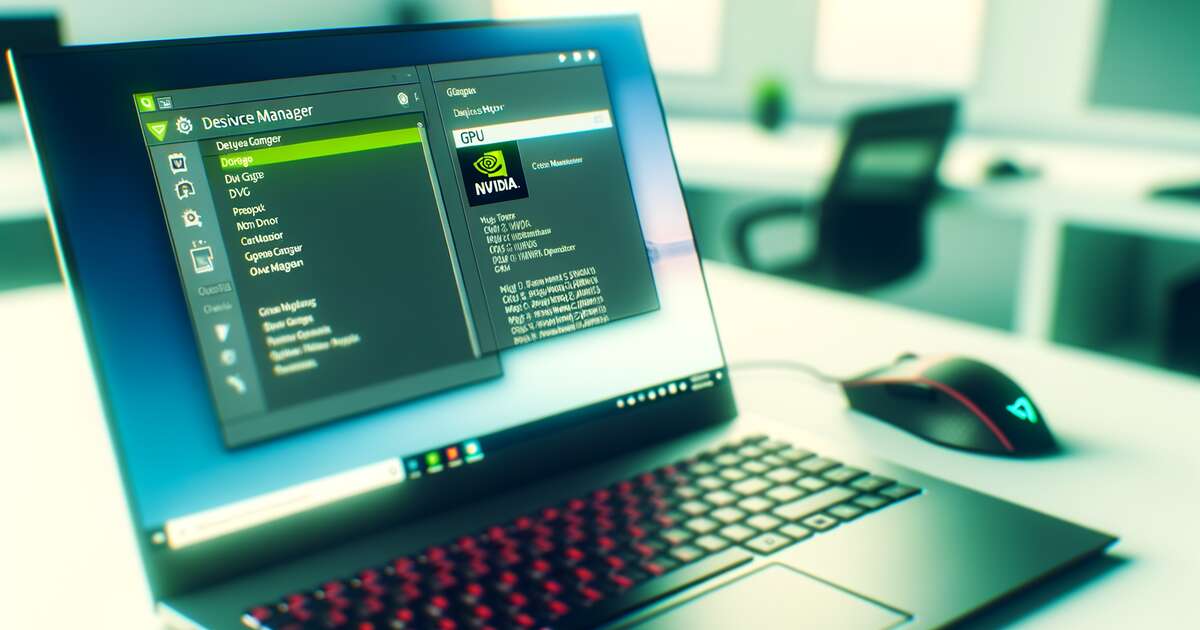
How to Check Your Current NVIDIA or AMD GPU Driver Version
Wondering if your NVIDIA or AMD GPU drivers are up to date? Knowing the current version of your GPU drivers is the first step in ensuring your graphics card is running optimally. Here’s how to quickly check your driver version, so you can be sure you’re getting the most out of your gaming or graphic experiences.
Checking NVIDIA GPU Driver Version
For NVIDIA users, simply right-click on your desktop and select NVIDIA Control Panel. Under the Help menu, click on System Information. Here, you’ll find the ‘Driver Version’ listed under the ‘Details’ section. Easy, right? 🖥️
Checking AMD GPU Driver Version
If you’re an AMD user, right-click the desktop and select AMD Radeon Settings. Navigate to System > Software. The driver version is displayed prominently here. With just a couple of clicks, you can see if you’re on the latest version.
Have you checked your driver version yet? Keeping your GPU drivers up to running with the latest updates plays a crucial role in maximizing performance and ensuring you get the best experience possible, whether it’s for gaming or professional graphics work.
Step-by-Step Guide to Update NVIDIA GPU Drivers for Enhanced Performance
Updating your NVIDIA GPU drivers can seem daunting, but it’s a critical step for ensuring your graphics card performs at its peak. Imagine experiencing your games with sharper graphics and smoother gameplay 🎮—that’s what updating your drivers can offer! Ready to boost your GPU’s performance? Follow this simple step-by-step guide.
Step 1: Verify Your Current Driver Version
Before you start, it’s important to know which driver version you are currently using. Open the NVIDIA Control Panel, go to the Help menu and select System Information. Here, you can find the version number under the Driver Version field. Is it up-to-date or a bit behind?
Step 2: Download the Latest NVIDIA Driver
Head over to the NVIDIA Driver Downloads page on the official NVIDIA website. Select your GPU model and the operating system. Make sure to choose the recommended driver version for optimal stability and performance. Click Download and then run the installation file.
Step 3: Install the Driver
After downloading, open the installer and follow the on-screen instructions. Choose the Custom installation option to perform a clean install and check the box for ‘Perform a clean installation’. This ensures that all old files are removed, which can prevent potential conflicts. Once the installation completes, reboot your computer to apply the changes. 🔄
Step 4: Verify the Installation
After restarting, revisit the NVIDIA Control Panel to ensure the new version is installed. Go to System Information again and check the Driver Version. Does it match the version you installed? If yes, then you’re all set to enjoy enhanced graphics and performance!

Step-by-Step Guide to Update AMD GPU Drivers for Enhanced Performance
Updating your AMD GPU drivers can significantly enhance your system’s performance, especially when it comes to gaming and high-demand graphic applications. But how exactly do you go about it? Don’t worry, we’ve got you covered with a simple, step-by-step guide that even beginners can follow.
Step 1: Identify Your GPU Model
Before you can update your drivers, you need to know exactly which AMD GPU model you have. You can easily find this information in the ‘Device Manager’ under the ‘Display adapters’ section. Have you checked yours yet?
Step 2: Download the Latest AMD Driver
Head over to the AMD official website and navigate to the ‘Drivers & Support’ section. Here, you can input your GPU model and download the most recent driver tailored specifically for your device. Always opt for the full driver package to ensure all features are updated!
Step 3: Install the Driver
Once the download is complete, open the installer and follow the on-screen instructions. This process might include a system restart, so make sure you save any important work beforehand. 🔄
Step 4: Verify the Installation
After restarting, check that the new driver is installed correctly by going back to the ‘Device Manager’. Does the driver version match what you downloaded? If yes, you’re all set to enjoy improved performance!
Troubleshooting Common Issues During GPU Driver Update
Encountering issues during the GPU driver update process can be frustrating, right? Whether it’s for your NVIDIA or AMD graphics card, certain common hurdles can disrupt even the simplest updates. Let’s dive into troubleshooting the most prevalent problems you might encounter when trying to update NVIDIA AMD drivers.
Driver Installation Failures
One of the most common issues users face is a driver installation failure. This can occur for several reasons such as incompatible drivers or residual files from previous installations. To resolve this, ensure you are downloading the correct driver version for your specific GPU model and OS. Additionally, using a dedicated software tool to completely uninstall old drivers before installing new ones might just do the trick!
System Compatibility Errors
Have you ever received an error message about system compatibility during the update? This typically happens when there’s a mismatch between the driver and your operating system version. To mitigate this issue, double-check that the driver supports your OS version. If not, you may need to look for an updated version of your OS or opt for a different driver release that is compatible.
Performance Glitches After Update
Sometimes, after an update, you might notice your system behaves oddly or your gaming performance drops. Odd, isn’t it? This could be due to incomplete installation or conflicts with other software. Try reinstalling the driver to ensure it installs correctly. Monitoring system performance through tools can also help you diagnose and resolve such issues effectively.
Common Questions
How do I update my AMD Radeon graphics driver?
Updating your AMD Radeon graphics driver involves a few straightforward steps. First, visit the official AMD website and navigate to the ‘Drivers & Support’ section. From here, you can manually search for your specific graphics card model or utilize AMD’s auto-detect tool that recommends the appropriate driver for your system. After downloading the recommended driver, execute the installation file and follow the on-screen instructions to complete the update process. It’s advisable to restart your computer after the installation to ensure all changes take effect properly.
Do I have to Uninstall NVIDIA drivers when switching to AMD?
Yes, when switching from an NVIDIA graphics card to an AMD graphics card, it is recommended to uninstall the NVIDIA drivers before installing the AMD drivers. This prevents any potential driver conflicts which could affect the performance of your new AMD card. You can uninstall the NVIDIA drivers through the ‘Add or Remove Programs’ feature in Windows, or use a dedicated driver cleanup utility like DDU (Display Driver Uninstaller) for a more thorough removal. After uninstalling, proceed with installing your AMD drivers for optimal compatibility and performance.
How to check if AMD drivers are up to date?
To check if your AMD drivers are up to date, you can use the AMD Radeon Software application installed on your PC. Open the application and navigate to the ‘Home’ or ‘Software’ tab where you’ll see your current driver version. The application typically checks for updates automatically and will notify you if a newer version is available. Alternatively, you can visit the AMD website, go to the ‘Drivers & Support’ section, and use the driver auto-detect tool which will help identify your current driver status and suggest updates if necessary.
How to update AMD processor drivers?
Updating AMD processor drivers involves downloading the latest chipset drivers from AMD’s official website. Head to the ‘Drivers & Support’ page, select your processor model and download the latest chipset drivers for your system’s operating system. Once downloaded, run the installation file and follow the instructions provided in the installer. After completing the installation, a reboot of your computer might be necessary to ensure all updates are successfully applied. This process helps ensure optimal performance and stability of your AMD processor.
The Benefits of Regular GPU Driver Updates
Keeping your GPU drivers up to date is an often overlooked but critical part of maintaining a smoothly running computer, especially for those who rely on their systems for gaming or graphic-intensive tasks. But why exactly should you stay on top of updating your NVIDIA or AMD drivers? 🤔
Firstly, updated GPU drivers can significantly enhance performance by providing new features and optimizations that are designed specifically for the latest games and applications. This means you can experience improved frame rates and better overall graphics quality. Isn’t it great to get the most out of your hardware with just a simple update?
Moreover, stability is key when it comes to your graphics card. Regular updates help fix bugs and issues that might cause crashes or other disruptions. This ensures smoother, more reliable performance across a wide range of software, keeping those dreaded system crashes at bay.
Lastly, keeping your drivers updated means you’re also ensuring the best possible security for your system. With each update, manufacturers often patch vulnerabilities that could be exploited by malware or hackers. Remember, updating your GPU drivers isn’t just about speed and looks, it’s also about safeguarding your system from potential threats! 🛡️
Ready to enhance your GPU performance?
Now that you know the perks of regular driver updates, there’s no better time to check and update your NVIDIA or AMD GPU drivers. Stay tuned to learn how to perform these updates step-by-step and troubleshoot common issues that might pop up during the process.
Final Thoughts: Update NVIDIA AMD Drivers
So, now that you know just how simple and beneficial it is to update NVIDIA AMD drivers, what’s stopping you from getting the best out of your GPU today? Whether you’re a hardcore gamer wishing for smoother gameplay or a professional in need of flawless graphic rendering, keeping your drivers up-to-date is a quick win. Remember, technological empowerment is just a few clicks away!
With the esports arena and digital arts fields rapidly evolving, staying ahead with the latest driver updates can provide that much-needed edge. Don’t let outdated drivers hold you back—embrace the full potential of your equipment by ensuring your software is as cutting-edge as your hardware. Let’s gear up, update those NVIDIA AMD drivers, and experience computing power like never before! 🚀


