

Upgrade Your OS: From Windows 8 To Windows 10 Or 11
Is your computer still running on Windows 8? It might be time to consider an upgrade! Upgrading from Windows 8 to the more recent Windows 10 or Windows 11 can bring a host of improvements and new features to your computing experience. Not only does an upgrade enhance your PC’s performance, but it also introduces modern security updates, sleek new interfaces, and a plethora of cutting-edge features designed to boost productivity. 🚀
The process to upgrade Windows 8 to Windows 10 or 11 is simpler than you might think. With just a few clicks, you could be enjoying a smoother, more secure computing experience. Curious about what Windows 10 and 11 have to offer over Windows 8? Well, let’s dive in and explore how these newer operating systems can revitalize your computer’s functionality and your digital life!
Exploring the Need to Upgrade Windows 8 to 10 or 11
Why should you consider upgrading from Windows 8 to Windows 10 or 11? Well, the answer lies in the enhanced functionality and improved security features that the newer versions offer. Sticking with outdated software not only limits your access to the latest features but also leaves you vulnerable to security risks. After all, don’t you want a machine that’s both efficient and secure?
Upgrading to Windows 10 or 11 from Windows 8 can breathe new life into your PC. Imagine quicker startup times, better management of system resources, and access to new technologies like touch interface enhancements and virtual desktops. With support for Windows 8 phasing out, upgrading to a supported version ensures continued software updates and security patches, crucial for protecting your personal information.
Key Benefits of Upgrading from Windows 8
- Enhanced security features to protect your data
- Access to the latest productivity tools and apps
- Improved user interface that’s easier to navigate
- Continual updates and support from Microsoft
Are you worried about the transition process? 🤔 Upgrading might seem daunting, but the latest advancements in Windows 10 and 11 make it a smooth and rewarding experience. From digital assistants like Cortana to features such as Snap Assist and Timeline, the practical benefits are undeniable. Isn’t it time to make the switch and give your PC the upgrade it deserves?
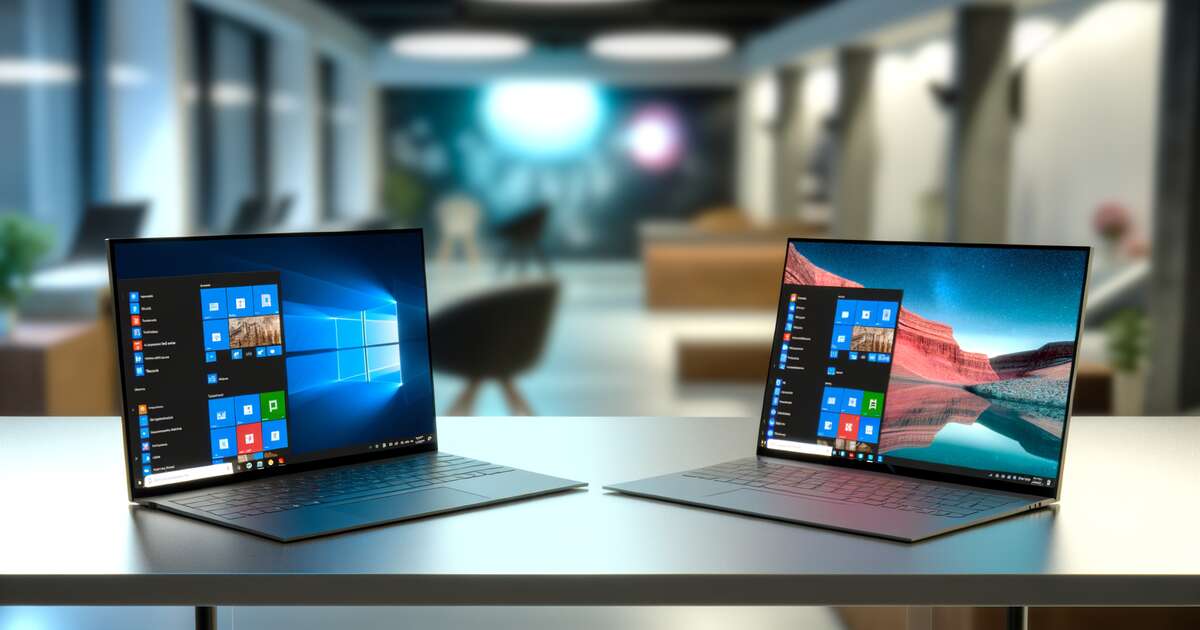
Comparative Overview: Windows 10 vs. Windows 11 Features
Thinking about upgrading from Windows 8? The choice between Windows 10 and Windows 11 can seem daunting. Each version brings its unique set of features and enhancements that could sway your decision. Let’s dive into a comparative overview to help you decide the best fit for your computing needs.
User Interface (UI) and Experience
Windows 11 offers a more refined and sleek UI, with a centered Start menu and rounded corners, aiming for a more modern aesthetic compared to the more familiar and traditional layout of Windows 10. Have you experienced the snapping feature? Windows 11 enhances multitasking with functions like Snap Layouts and Snap Groups, making it easier to organize open apps compared to Windows 10.
Performance Enhancements
Both operating systems boast improvements in speed and efficiency, but Windows 11 is designed to better utilize the latest hardware, potentially offering a smoother experience, especially on newer devices. Windows 10, however, is known for its stability and is a solid choice if your device is on the older side.
Feature-specific Differences
Windows 11 introduces features like DirectStorage for faster game loading times, which is a huge plus for gamers. It also includes Android app integration via Amazon Appstore. Windows 10 doesn’t offer these features but holds strong with excellent compatibility and a comprehensive software ecosystem. Which feature could improve your daily computer use?
Preparation Steps Before Upgrading from Windows 8
Are you ready to make the leap from Windows 8 to a more recent version like Windows 10 or 11? Before you start, there are some preparation steps you need to consider to ensure a smooth and successful upgrade. Upgrading your operating system can seem daunting, but with the right preparation, it’s a breeze!
1. Check System Requirements
Firstly, verify that your PC meets the minimum system requirements for Windows 10 or 11. This includes checking the processor, RAM, disk space, and graphics card. You don’t want to start an upgrade only to find out your system isn’t compatible, right? 💻
2. Back Up Your Data
It’s crucial to back up your important files, documents, and applications. Whether you use an external drive or cloud storage, ensure all your valuable data is safe. Have you ever lost important documents during an upgrade? It’s not fun!
3. Update Your Current System
Ensure your current Windows 8 system is fully updated to avoid any compatibility issues during the upgrade process. This includes installing all available Windows updates and drivers.
4. Uninstall Unnecessary Software
Remove any software applications that are no longer needed or that might conflict with the upgrade. This not only frees up space but also minimizes the risk of software-related issues post-upgrade.
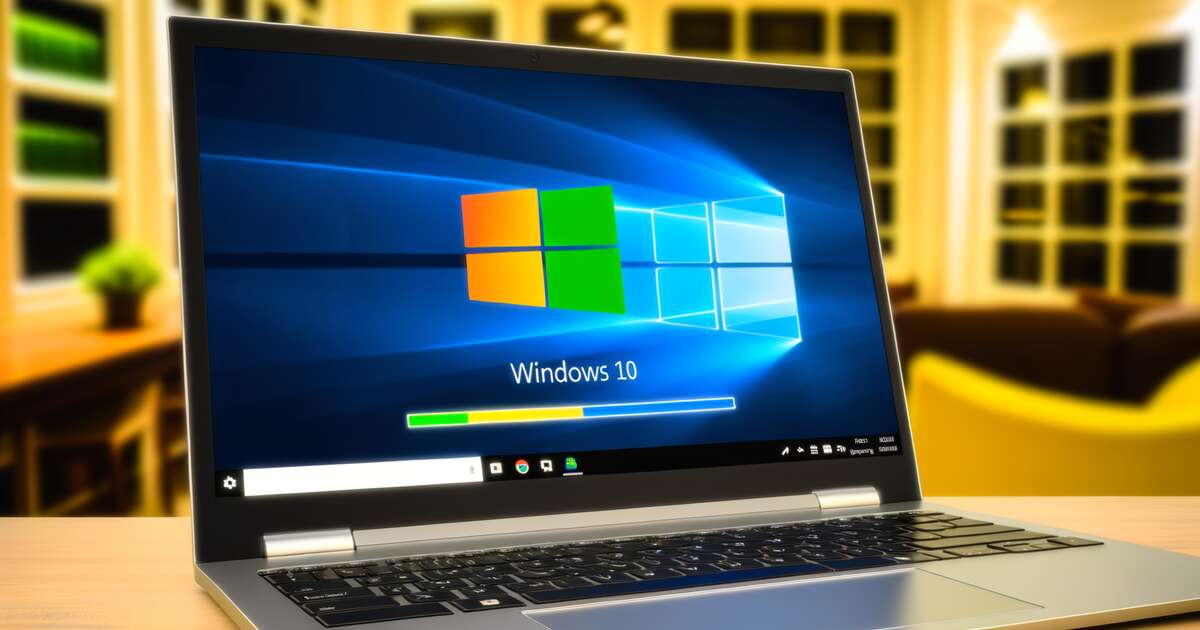
Step-by-Step Guide to Upgrade Windows 8 to Windows 10
Ready to take the leap from Windows 8 to Windows 10? Upgrading your operating system can seem daunting, but with this easy-to-follow guide, you’ll make the switch smoothly and efficiently. Are you excited to explore the enhanced features and improved performance of Windows 10?
Check System Compatibility
First things first, ensure your PC meets the minimum system requirements for Windows 10. You can quickly check this by visiting the official Microsoft website or using the Windows 10 Update Assistant. This tool helps in assessing whether your hardware is compatible and ready for the upgrade.
Back Up Your Data
Before proceeding with the upgrade, it’s crucial to back up all important files. Whether it’s documents, photos, or applications, having a backup will save you from unintended data loss. Have you backed up your data yet? Using an external drive or cloud storage solutions are some of the safest methods to secure your files.
Install Windows 10
Once you’re set, it’s time to install Windows 10. If your machine is eligible, you might be able to upgrade directly using Windows Update. Alternatively, you can download the Windows 10 installation media from Microsoft’s website and run the installation manually. Follow the on-screen instructions, and make sure to choose ‘Keep personal files and apps’ if you do not want to lose your existing data.
Post-Installation Setup
After installing Windows 10, you’ll go through the initial setup process. Customize your settings, and don’t forget to install all necessary drivers and updates to ensure your system runs smoothly. Now, enjoy the fresh look of Windows 10, and explore all the new features it has to offer! 🎉
How to Transition from Windows 8 to Windows 11 Smoothly
Upgrading from Windows 8 to Windows 11 can feel daunting at first, but with the right approach, it can be a smooth and rewarding experience. Are you ready to take the leap and enhance your PC’s performance with the latest features offered by Windows 11?
Check System Requirements
First things first, make sure your system meets the minimum requirements for Windows 11. This includes a compatible 64-bit processor, 4GB of RAM, and 64GB of storage. Microsoft also requires TPM 2.0 support and DirectX 12 compatible graphics. It’s essential to verify these before proceeding with your upgrade. You don’t want any surprises mid-installation, do you?
- Backup your data to avoid loss during the upgrade process.
- Update your existing software and drivers to minimize compatibility issues.
- Uninstall unnecessary applications to clean up your system before the transition.
Smooth Installation Process
Using the Windows 11 Installation Assistant is one of the easiest ways to upgrade. Simply download the tool from the official Microsoft website, and follow the on-screen instructions. The assistant will guide you through the process, automating most of the tasks and ensuring a smooth transition. Isn’t that convenient?
Common Questions
Can I upgrade my Windows 8 to Windows 10 for free?
As of now, officially, the free upgrade offer for Windows 10 by Microsoft has ended. It originally expired on July 29, 2016, but there were extensions for users of assistive technologies. Currently, users looking to upgrade from Windows 8 to Windows 10 typically need to purchase a license from Microsoft or authorized retailers. However, users can still try to run the Windows 10 upgrade from the official Microsoft website as some users have reported that it might still be possible to upgrade without charge, but this isn’t guaranteed.
How much does it cost to upgrade from Windows 8.1 to Windows 10?
To upgrade from Windows 8.1 to Windows 10, users generally need to purchase a license key for Windows 10. The cost can vary based on the edition (Home or Pro) and the offers available from Microsoft or other retailers at the time of purchase. Typically, the price for a Windows 10 Home license is around $139, while the Pro version may cost about $199. It’s important to check Microsoft’s official site or trusted retailers for the most current pricing and offers.
Can Windows 8 be updated?
Yes, Windows 8 can still receive updates, but only for Windows 8.1, as support for the original Windows 8 version ended on January 12, 2016. Users of Windows 8 are advised to upgrade to Windows 8.1 to continue receiving support and updates from Microsoft. Windows 8.1 support, including security updates, ended on January 10, 2023, which means that upgrading to a more recent version of Windows, such as Windows 10 or Windows 11, is highly recommended to keep the system secure and supported.
Troubleshooting Common Issues During Windows Upgrade
Encountered a hiccup while trying to upgrade Windows 8? It’s not uncommon to run into a few roadblocks during an operating system upgrade. Whether it’s a stubborn error message or a compatibility issue, these obstacles can be frustrating. But don’t worry! With a few troubleshooting tips, you can overcome these problems and enjoy the enhanced features of Windows 10 or 11.
Common Problems and Their Solutions
First, let’s tackle the most frequent issue: installation errors. These often occur due to outdated drivers or insufficient disk space. Before you initiate the upgrade, make sure to update all your device drivers and clear up enough space on your system. Isn’t it better to be fully prepared than to face interruptions during the process?
Another typical challenge is software compatibility. Some of your existing software might not play well with Windows 10 or 11. To handle this, visit the software vendor’s website to download the latest versions compatible with your new OS. This proactive approach saves you from last-minute hassles. 😊
Lastly, if the upgrade process stops unexpectedly, it could be due to system overheating or power settings. Ensure your computer is well-ventilated and consider adjusting your power settings to prevent it from going to sleep during the upgrade. A smooth upgrade to a newer Windows version is not just a necessity; it’s a pathway to better and faster functionalities!
Final Thoughts: Upgrade Your OS: From Windows 8 To Windows 10 Or 11
Excited about transforming your computing experience by making the leap to a newer version? Upgrading from Windows 8 to Windows 10 or 11 not only brings you the latest features but also ensures that your system remains supported with the latest security updates. Remember, keeping your system updated is crucial for optimal performance and security. Isn’t it great to know your machine can stay as fresh and functional as possible?
If you’ve followed our guide, the upgrade process should be smooth and hassle-free. However, should you encounter any issues, revisiting the troubleshooting steps can be a great help. Don’t hesitate to explore further; get the most out of your upgraded Windows system! Thanks for reading, and enjoy your new, enhanced Windows experience with Windows 10 or 11! 😊


