

Fix Autocorrect Fails: Tweak iPhone & iPad Keyboard Settings
Tired of those pesky autocorrect mistakes that seem to have a mind of their own? You’re not alone! Fix Autocorrect Fails on your iPhone and iPad with some simple tweaks to your keyboard settings. Why endure the frustration of miscommunications when the solution is right at your fingertips? It’s time to take control of your typing experience!
In this guide, we’ll dive into the nuts and bolts of your device settings to make sure every word you type is exactly what you intended. 🛠️ Whether it’s sending quick texts or composing important emails, getting your settings right can make a world of difference. Are you ready to bid farewell to those awkward text mishaps once and for all?
Keep reading as we unfold the steps to tailor your iPhone or iPad keyboard settings effectively, ensuring a seamless and error-free typing experience. From adjusting autocorrect features to exploring other hidden keyboard tricks, we’ve got all the insights you need!
Understanding Autocorrect on iPhone and iPad
Autocorrect on iPhone and iPad can be a double-edged sword, right? It’s there to help you type faster by automatically correcting typos and spelling errors. But sometimes, it seems like it has a mind of its own, changing words in ways that don’t make sense. Why does this happen? Let’s break it down.
The autocorrect functionality is built into iOS and iPadOS to enhance typing speed and accuracy. It uses a complex algorithm that combines dictionary words, your previous conversations, and learned adjustments to predict and correct what you’re trying to type. Think of it as a tiny assistant inside your device that’s always trying to help out 🧐. But when it misinterpreres your intent, that leads to often amusing, sometimes frustrating ‘autocorrect fails’.
- The system references a built-in dictionary to match words as you type.
- Learning from past corrections, it attempts to adapt to your language use over time.
- It also looks at the context of the message to try predicting and altering words to fit.
Moreover, autocorrect assumes the use of common, everyday language much more frequently than niche or new terms. Do you ever feel like your keyboard just doesn’t understand you? Don’t worry, adjusting your keyboard settings might just solve that issue. Stick around to find out how!
Common Autocorrect Fails and Why They Happen
Ever typed a message on your iPhone and looked back to see that your words were replaced by something completely unexpected? It’s a common issue, and understanding why these autocorrect fails occur can be both amusing and crucial. Autocorrect is designed to help us type faster and more accurately, but sometimes it seems like it has a mind of its own!
So, why do these humorous and sometimes embarrassing autocorrect fails happen? Mostly, it’s because the autocorrect algorithm is constantly learning from the plethora of data it receives, and it especially depends on your previous interactions. However, language is complex and full of nuances. It’s practically impossible for autocorrect to accurately predict every variation in everyone’s typing habits. Have you noticed how it sometimes replaces perfectly common words with bizarre ones? That’s autocorrect trying to be helpful based on what it predicts you might say next!
Examples of Typical Autocorrect Mistakes
- Changing ‘omw’ to ‘On my way!’ automatically.
- Replacing ‘food’ with ‘good’—making dinner plans confusing.
- The classic ‘ducking’ instead of, well, you know!
Recognizing why these mishaps occur is the first step in learning how to Fix Autocorrect Fails. With this knowledge, we’re equipped to delve deeper into adjusting settings that might help in preventing such fails. Are you ready to make your autocorrect actually ‘correct’? 😄
Step-by-Step Guide to Adjust Keyboard Settings
Tired of those pesky autocorrect errors that turn your texts into unintentional comedy? Adjusting your iPhone or iPad’s keyboard settings can save the day! Whether it’s a quick tweak or a deep dive into settings, mastering your device’s keyboard helps you communicate more effectively. Ready to start? Let’s roll up our sleeves and dive into the adjustments!
Access Keyboard Settings
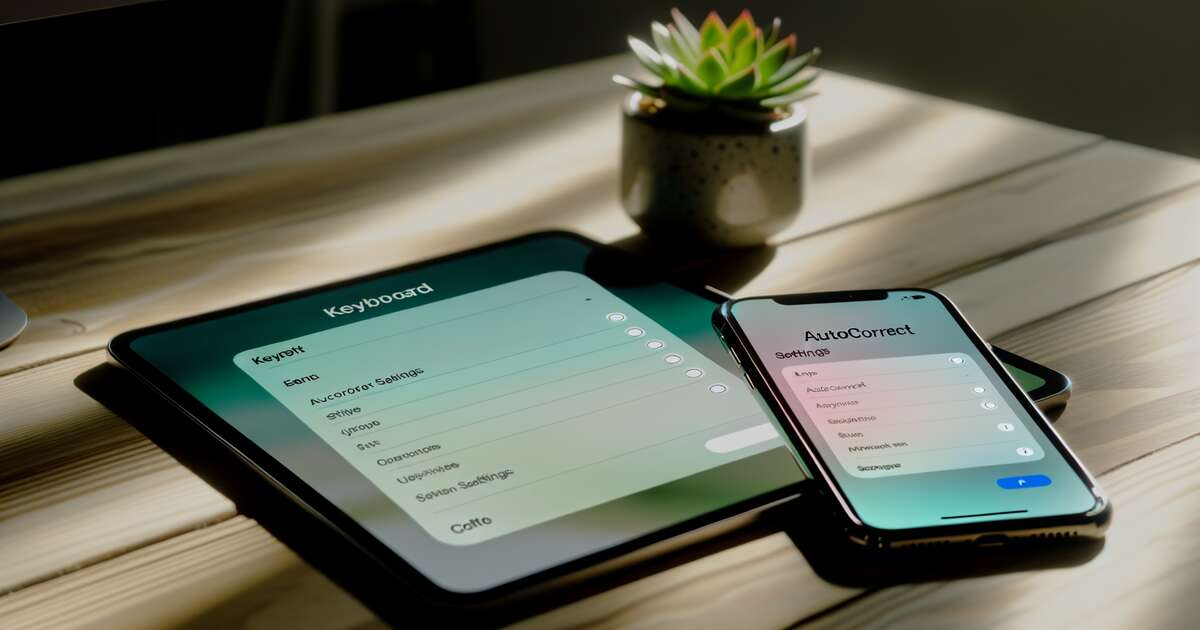
Firstly, open the ‘Settings’ app on your iPhone or iPad. Scroll down and tap on ‘General’, followed by ‘Keyboard’. This is your control room for all things typing-related. Are you surprised by the number of options available?
Adjust Autocorrect Features
Within the Keyboard settings, toggle ‘Auto-Correction’ to suit your needs. If autocorrect is more of a foe than a friend, you might prefer to turn it off. However, if you generally find it helpful, try just tweaking it slightly. Additionally, consider tweaking ‘Predictive’ text and ‘Check Spelling’ to fine-tune your typing experience.
Experiment with Text Replacement
Text Replacement is a lifesaver for frequently used phrases. Tap on ‘Text Replacement’ and hit the ‘+’ icon to add a new phrase and shortcut. This feature allows you to type just a few letters and have them expand into a complete sentence. Why not save time on typing out long, repetitive information?
Final Touch: Check for Updates
Sometimes, keyboard glitches are due to outdated software. Head back to ‘General’ and tap on ‘Software Update’ to ensure your device is up-to-date. Keeping your software current can often fix lingering keyboard issues.
Tips to Master Autocorrect for Error-Free Typing
Have you ever been baffled by the bizarre corrections your iPhone makes while typing? You’re not alone! Mastering autocorrect can seem daunting, but with the right tips, you can transform it from foe to friend. Here, we’ll guide you through practical strategies to make autocorrect work for you, ensuring your messages are error-free. After all, who doesn’t want to avoid those pesky autocorrect fails?
Understand Contextual Predictions
Firstly, appreciating how autocorrect tries to understand context can significantly reduce errors. It’s designed to predict and correct your text based on commonly typed words and phrases. You might notice it adapting over time — that’s your device learning from your typing habits! Why not give it a helping hand? When it suggests corrections that don’t make sense, take a moment to manually fix them. It helps the tool learn better.
Customize Your Dictionary
Adding words to the keyboard dictionary is super helpful, especially for names, technical jargon, or slang. By doing this, you’re less likely to ‘Fix Autocorrect Fails’ unintentionally. Open your keyboard settings to add words or phrases you frequently use but are often autocorrected. It’s a lifesaver for ensuring personal and professional texts are communicated just the way you intend.
Regular Updates and Learning
Lastly, keep your device updated. Updates not only bring new features but also improve existing ones like autocorrect. They may also include updates to dictionaries, which help in understanding new words and slang better. Regularly reviewing what your autocorrect has learned can also be revealing—make sure it reflects your current typing habits and preferences!
Alternative Keyboard Apps to Enhance Typing Experience
Tired of the same old autocorrect errors? Why not consider exploring some alternative keyboard apps that could dramatically enhance your typing experience on your iPhone and iPad? With a variety of options available, finding one that suits your specific needs and preferences could not only fix those annoying autocorrect fails but also bring a fresh and efficient way to communicate.
Top Keyboard Apps for a Better Typing Experience
Let’s dive into the world of keyboard apps! Here are a few top picks: SwiftKey, known for its intelligent predictive text and swiping capabilities, Gboard, which integrates Google’s search functionality directly into the keyboard, and Fleksy, popular for its customization options and minimalistic design. Why stick to the default when these apps can offer so much more?
Common Questions
How to fix bad autocorrect?
Fixing bad autocorrect usually involves adjusting your device’s keyboard settings or teaching the autocorrect feature to recognize and adapt to your writing style. On most smartphones, you can access the keyboard settings directly from your device’s general settings. Here, you can reset your dictionary to remove any learned mistakes or unwanted corrections. Additionally, consistently correcting the autocorrect when it makes an error helps the system learn your preferences over time. For persistent issues, consider updating your device’s software, as updates often include improvements to autocorrect functionality.
How to reset autocorrect?
Resetting autocorrect typically involves clearing the learned words and data that your keyboard has stored. To do this, go to the settings app on your device and navigate to the ‘Language u0026 Input’ section where you can find options related to your keyboard. Look for a setting like ‘Reset Keyboard’ or ‘Clear Personal Data.’ For specific devices like iPhones, you might have to reset the keyboard dictionary by going to ‘General’ settings, then ‘Reset’, and selecting ‘Reset Keyboard Dictionary.’ This action should restore your keyboard’s autocorrect functionality to its default state, unlearning any custom words or phrases it has picked up over time.
How do I fix autocorrect on certain words?
To fix autocorrect issues with specific words, you first need to identify if your device is automatically correcting them based on its dictionary or from learned text. You can try manually adding the words to your device’s dictionary via the keyboard settings. Most smartphones allow you to add words directly to the dictionary by navigating to the text input options under settings. If the problematic word is a learned word that is being incorrectly corrected, look for an option to ‘Forget Learned Words’ or similar. Additionally, continuously manually correcting the autocorrect when it incorrectly changes specific words can also help the system learn the correct usage over time.
How to Reset and Restore Default Keyboard Settings
Accidentally tweaked your keyboard settings too much while trying to fix autocorrect fails on your device? No worries! Restoring your iPhone or iPad’s keyboard to its default settings is a straightforward process, ensuring you can start fresh with your autocorrect. Let’s explore how to reset these settings effectively!
Resetting Keyboard Settings on iOS
To begin the reset, open your device’s Settings app 📱. Navigate to General, and then scroll down to Keyboard. Here, you’ll find an option labeled ‘Reset Keyboard Dictionary’, which will wipe out all the custom words and settings that have been adjusted since you began using the device. Curious what happens next? By tapping this, you not only fix autocorrect fails but also clear any learned words that might be causing typos!
Are you ready to restore your keyboard to its original glory? Simply confirm your choice when prompted, and your keyboard dictionary will revert to its factory default setting. It’s like giving your typing experience a fresh start, free from previous confusions caused by odd autocorrect suggestions!
- Open Settings > General > Keyboard
- Tap ‘Reset Keyboard Dictionary’
- Confirm your choice to restore settings
Final Thoughts: Fix Autocorrect Fails on iPhone & iPad
You’re now equipped with all the necessary knowledge to fix autocorrect fails and make typing on your iPhone and iPad a breeze! Isn’t it fantastic to know that just a few tweaks in the settings can save you from those pesky typing errors? Feel empowered to personalize your device for a typo-free digital communication experience. 🚀
Remember, mastering your device’s autocorrect functionality not only improves your typing accuracy but also enhances your overall messaging experience. So, why not give these tips a try and see how your typing transforms? If you ever feel the need to switch things back or try something new, you always have the option to reset and restore your keyboard settings. Here’s to error-free typing! 🎉


