ZachN-TRG

Forum Replies Created
-
AuthorPosts
-
 ::
I’m sorry to hear that you’re experiencing the BSOD error with code 0x00000043. This error usually indicates a problem related to the file system. Please refer to the BSOD error code master list for a list of all error codes and their faults.
Here are some steps you can take to troubleshoot and potentially resolve the issue:
- Check Disk Utility:
- Press
Win + Xand select “Windows PowerShell (Admin)” or “Command Prompt (Admin).” - Type
chkdsk /fand press Enter. Follow any on-screen prompts and restart your system.
- Press
- Update Drivers:
- Outdated or incompatible drivers can sometimes cause this error. Make sure your drivers, especially those related to storage devices, are up to date.
- Check for Disk Errors:
- Open Command Prompt as an administrator.
- Type
sfc /scannowand press Enter. This will scan and repair corrupted system files.
- Review Recent Changes:
- Did you recently install new hardware or software? If so, try uninstalling or rolling back those changes.
- Run System File Checker:
- Open Command Prompt as an administrator.
- Type
sfc /scannowand press Enter. This will scan and repair corrupted system files.
- Check for Malware:
- Perform a full scan using your preferred antivirus software.
- Update Windows:
- Make sure your system is running the latest updates.
If the issue persists, it’s possible that there may be a more specific underlying cause. Feel free to provide any additional information about when the error occurs or any recent changes you’ve made, and we can explore further steps.
Hope this helps, and let me know how it goes.
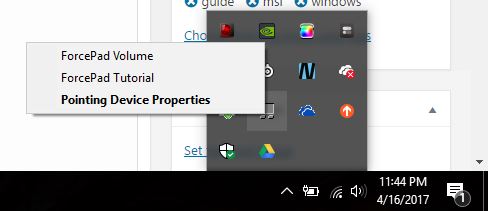
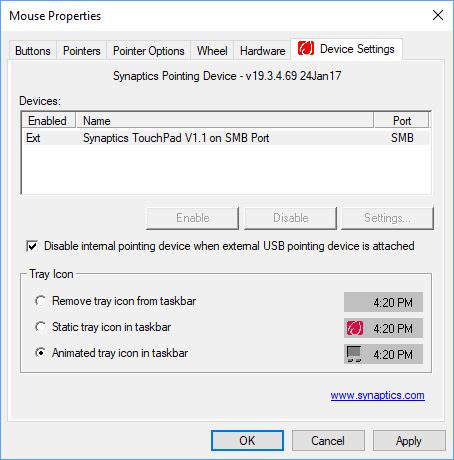
::Try the following to disable your touchpad while you have a USB mouse plugged in.
- Right-click on the Synaptics Pointing Device icon located on the taskbar

- Click on Pointing Device Properties

- Tick on the option Disable internal pointing device when external USB pointing device is attached
- Click on OK
If you don’t have the Synaptics Pointing Device, you can disable your touchpad in Windows settings.
-
Open the start menu, type touchpad settings in the search box, and then press enter.
-
Click the Touchpad button to turn the touchpad off or on.
NOTE:To configure the touchpad to be disabled automatically when an external mouse is connected, ensure that the Touchpad button is set to On.NOTE:If you are not using an external mouse, press the tab key repeatedly until the pointer rests on the touchpad button. Then, press the spacebar to select the button.
-
To automatically disable the touchpad when an external mouse is connected to the computer, configure the setting using the instructions for your operating system.
- In Windows 11, click the arrow icon
 to expand the Touchpad settings, and then clear the Leave the touchpad on when a mouse is connected check box.

- In Windows 10, clear the Leave the touchpad on when a mouse is connected check box.

- In Windows 11, click the arrow icon
- Check Disk Utility:
-
AuthorPosts