How do I disable my track pad on my MSI Raider?

Home / Forums / Microsoft Windows / Windows 11 / How do I disable my track pad on my MSI Raider?

Tagged: ,

  • Author
    Posts
  • Up
    0
    Down
    ::
    September 13, 2023 at 1:04 am #3905

    Would I disable trackpad from msi settings or from some type of windows setting?

    Up
    1
    Down
    ::
    September 13, 2023 at 1:30 am #3906

    Try the following to disable your touchpad while you have a USB mouse plugged in.
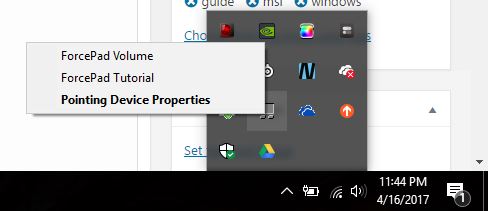
    1. Right-click on the Synaptics Pointing Device icon located on the taskbar
    2. Click on Pointing Device Properties
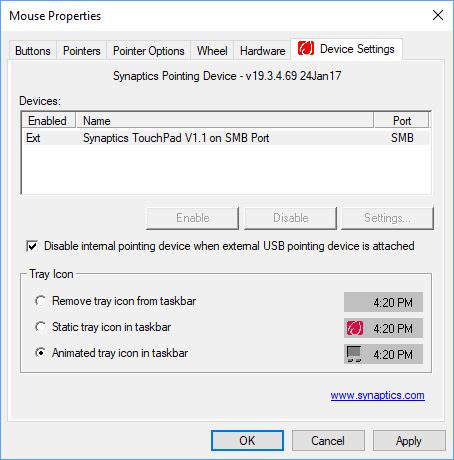
    3. Tick on the option Disable internal pointing device when external USB pointing device is attached

    4. Click on OK

    If you don’t have the Synaptics Pointing Device, you can disable your touchpad in Windows settings.

    1. Open the start menu, type touchpad settings in the search box, and then press enter.

    2. Click the Touchpad button to turn the touchpad off or on.

      NOTE:To configure the touchpad to be disabled automatically when an external mouse is connected, ensure that the Touchpad button is set to On.

      NOTE:If you are not using an external mouse, press the tab key repeatedly until the pointer rests on the touchpad button. Then, press the spacebar to select the button.

      Enabling or disabling the touchpad
    3. To automatically disable the touchpad when an external mouse is connected to the computer, configure the setting using the instructions for your operating system.

      • In Windows 11, click the arrow icon  to expand the Touchpad settings, and then clear the Leave the touchpad on when a mouse is connected check box.

        Clearing the Leave the touchpad on when a mouse is connected check box in Windows 11

      • In Windows 10, clear the Leave the touchpad on when a mouse is connected check box.
        Clearing the Leave the touchpad on when a mouse is connected check box in Windows 10
  • You must be logged in to reply to this topic.