Enabling iCloud Sync: How to Make Sure Your Data is Backed Up
Struggling with keeping your data secure and up-to-date across all your Apple devices? Ensuring iCloud Sync could be the lifesaver you’ve been looking for! 🌟 iCloud sync allows your photos, documents, and important settings to seamlessly update across your iPhone, iPad, and Mac, ensuring that you’re always in the loop with the latest data iterations. But how do you make sure everything is synced properly?
If the thought of losing your precious memories and essential documents sends shivers down your spine, fret not. Read on to discover the crucial steps to get iCloud syncing working flawlessly. We’ll delve into the common pitfalls and how to avoid them, ensuring that your data is not only backed up but also protected. It’s easier than you think to ensure you never face the nightmare of data loss!
Keep your digital life smooth and uninterrupted. By the end of this guide, you’ll have a robust understanding of Enabling iCloud Sync, equipped with the knowledge to secure your digital assets efficiently. Ready to protect your data with a few simple steps? Let’s dive in!
Understanding iCloud Sync and Its Importance
Understanding the significance of Enabling iCloud Sync cannot be overstated, especially in a world where our data is as precious as any physical possession. Can you imagine losing all your contacts, photos, documents, and more with just a small tech glitch? With iCloud Sync, that risk is massively diminished. This feature not only helps in keeping your data safe but also ensures that it is up-to-date across all your Apple devices.
But why is iCloud Sync so crucial for Apple users? It seamlessly integrates your information across multiple devices. This means if you make a change on one device, it automatically updates across all others connected to your iCloud. Have you ever updated a contact’s details on your iPhone and seen it reflect on your Mac? That’s iCloud Sync working tirelessly in the background!
Checking Your iCloud Backup Status on iOS Devices
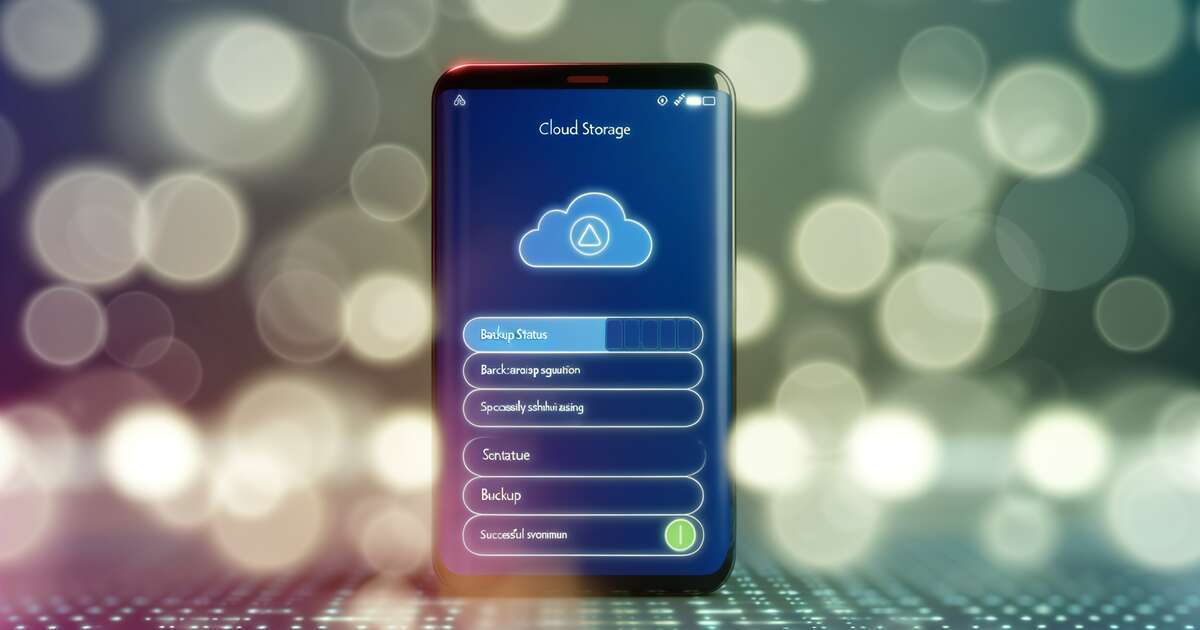
Making sure your data is safely backed up on your iOS device is crucial, isn’t it? Regularly checking the status of your iCloud backup ensures you’re never at risk of losing important information. But how do you go about it on your iPhone or iPad? Let’s delve into it!
First things first, you need to open the Settings app. It’s always conveniently located on your home screen. Once you’re there, tap on your name at the top, then proceed to iCloud. Can you see the bar that shows your iCloud usage? This is not just a meter—it’s your gateway to understanding what exactly is backed up!
Navigating the iCloud Storage
In the iCloud menu, tap on Manage Storage. Here, you’ll find ‘Backups.’ Tapping this will reveal a list of devices linked to your iCloud account, including your current device. Select your device to see details about the latest backup—important info such as the time of the latest backup and what was actually included in it. Now, ask yourself, does everything look like it’s syncing properly?
- Last backup date
- Backup size
- Apps included in the backup
Setting Up iCloud Properly to Guarantee Sync
When it comes to Enabling iCloud Sync, setting up your iCloud account properly is the linchpin for syncing success. Did you know that a correct initial setup can save you from data syncing issues down the line? It’s true! The right settings can facilitate seamless synchronization across all your Apple devices, making sure your important files, photos, and app data are always up-to-date and accessible.
First and foremost, ensure you’re signed in to iCloud with your Apple ID on all devices you want synced. Sounds simple, right? But you’d be surprised how often this basic step is overlooked. Next, navigate to your device’s settings, tap on your name at the top, and choose ‘iCloud’ to access iCloud settings. Here, you’ll be able to toggle on the services you need to sync across devices, such as Contacts, Calendars, and Photos.
- Make sure your device is connected to Wi-Fi.
- Verify that you have enough storage space in iCloud to perform the sync.
- Check for any software updates, as these can often resolve syncing issues.
Remember, settings can vary slightly depending on your iOS version and device model, but the core steps are generally the same. Are all settings tweaked, and are you still facing issues? It might be time to delve deeper into troubleshooting, or even consider a quick peek at your network settings. Enabling iCloud Sync isn’t just about ticking boxes; it’s about creating a reliable ecosystem for your digital life. 🌐✨

Common Issues Preventing iCloud Sync and Fixes
Have you ever had issues with your iCloud not syncing properly? It can be frustrating when your contacts, photos, or documents aren’t updating across all your devices. Let’s dive into some common issues that might prevent iCloud sync and discuss practical fixes to ensure that your data backs up seamlessly.
Common iCloud Sync Issues
- Incorrect Apple ID: Ensure you’re signed in on your devices with the same Apple ID used for iCloud.
- Not enough storage: iCloud requires free space to update and sync information. If your storage is full, consider upgrading or managing your storage options.
- Network connectivity: A stable and strong internet connection is crucial for iCloud sync.
Are your devices connected to the right network? Sometimes, simply switching from a slower, unstable network to a more reliable one can fix syncing issues. Moreover, it’s essential to check if the iCloud servers are up and running by visiting Apple’s system status page.
If you’ve gone through these checks and are still having trouble, try restarting your device or signing out and back into iCloud. These actions can refresh your system’s connection with iCloud and often resolve persisting issues. Remember, consistency is key in troubleshooting technology glitches! 🛠️
How to Manually Backup Your Data to iCloud
Manually backing up your data to iCloud can be a crucial step in ensuring your data’s safety and accessibility. Have you ever considered the peace of mind that comes from knowing all your important files are securely stored and up-to-date in the cloud? Let’s walk through the process step by step.
Steps to Manually Backup Your Data to iCloud
- Ensure your device is connected to Wi-Fi.
- Navigate to the Settings app > [Your Name] > iCloud.
- Scroll down and select ‘iCloud Backup’.
- If it’s not already turned on, enable the iCloud Backup option.
- Tap ‘Back Up Now’ and wait for the backup to complete.
While this process is straightforward, it requires a stable internet connection to avoid any interruptions. The duration of the backup process depends on the amount of data being backed up and the speed of your internet connection. Isn’t it reassuring to know that enabling iCloud sync can be as simple as following these steps?
Common Questions
How do I make sure my iCloud is syncing?
To ensure your iCloud is syncing properly, start by checking your internet connection since iCloud requires a stable connection to sync. Then, verify that you are signed into the same Apple ID across all devices you want synced. Check your iCloud settings to confirm that the specific data you want to sync (like Contacts, Calendars, Photos, Documents, etc.) is turned on. Additionally, ensure that you have sufficient storage available in your iCloud account as a lack of space can prevent syncing. If everything is set correctly, changes made on one device should appear on others connected to the same iCloud account.
How to force iCloud to sync?
To force iCloud to sync, you can try a few steps. First, you can restart the device which can help refresh the connections and processes that may be stuck. If that doesn’t work, you can sign out of your iCloud account and then sign back in, which often forces a sync of your data. On a Mac, you can also force a sync by using the Finder app; just open Finder, go to ‘iCloud Drive’ in the sidebar, and drag a new file into the iCloud Drive folder or update an existing one, which will trigger a sync. Make sure that you always have a stable internet connection during this process.
Why is iCloud not syncing?
iCloud might not be syncing for several reasons. Common issues include not enough storage in your iCloud account, differences in Apple ID accounts across devices, or connectivity issues. Sometimes the settings on your device might not be configured correctly to allow for syncing; for instance, certain services you want to sync (like Photos, Mail, or Contacts) might be disabled. Software updates can also impact iCloud functionality, so ensure your device’s operating system is up to date. Moreover, server-side issues at Apple can occasionally disrupt iCloud services; checking Apple’s System Status page can help determine if this is the case.
How do I push iCloud Drive to sync?
To push iCloud Drive to sync, first ensure your internet connection is active and stable. Open the Finder on Mac and go to the iCloud Drive section. Adding a new file to your iCloud Drive or making changes to an existing file can prompt a sync update. If manual updates don’t work, try restarting your device. Sometimes, toggling iCloud Drive off and on again in the system preferences can help initiate the sync process. If none of these steps work, logging out of your iCloud account and logging back in can often force synchronization.
Optimizing iCloud Storage for Effective Sync
When discussing Enabling iCloud Sync, optimizing your iCloud storage is a crucial step to consider. Have you ever experienced slow sync speeds or noticed that your devices are not updating with the latest data? Optimizing your iCloud storage can be the game-changer you’re looking for.
Streamline Your iCloud Storage
To start, assess which apps are allowed to store data on iCloud. Go to your device settings and check the iCloud section. Do you really need to sync all of those apps? Perhaps some of them are using valuable space inefficiently. Consider turning off iCloud for apps where syncing is not essential, or apps that duplicate data already stored elsewhere.
Next, clean up old and unnecessary files. This can include old documents, redundant backups, or photos and videos that have already been securely backed up to another service. This not only frees up space but also simplifies your storage, which can boost syncing performance.
Leverage iCloud Storage Management
Apple provides tools directly in the Settings to manage your iCloud storage efficiently. Use this feature to review large attachments or outdated items that may no longer be necessary. Keeping your iCloud clean and organized ensures that your devices sync only the most relevant and needed data. Isn’t that a smart way to manage resources?
Final Thoughts: Enabling iCloud Sync
And there you have it! By following the steps above, you’re well on your way to safeguarding your data with iCloud. Enabling iCloud Sync not only keeps your digital life tidy but also grants you peace of mind. Who doesn’t want to know their precious memories and essential documents are safe and sound? So, did you check your iCloud backup status yet? It’s a simple step that makes all the difference!
Remember to regularly optimize your iCloud storage and stay alert for any common issues that might disrupt your syncing process. With these practices, you’ll maximize the effectiveness of iCloud and keep your data protected and easily accessible. 💻🔒 Happy syncing!