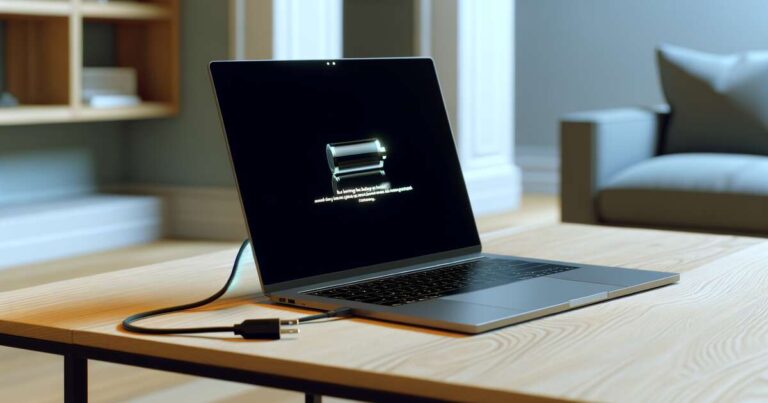
What to Do When Your Computer Screen Won’t Show a Picture?
Struggling with a computer screen issue where your display just won’t show a picture? It’s a common hiccup that can disrupt your day, but don’t worry—solutions are at hand! Whether you’re in the middle of important work or just settling down for a movie, a non-responsive screen can be more than a minor annoyance.
In this guide, we’ll walk you through some straightforward troubleshooting tips that could help restore your computer’s display without needing to call in the experts. Are you ready to tackle this problem and get your screen back to normal? Let’s figure out how to bring that display back to life!
Understanding the root of the problem is key. Whether it’s a hardware issue, a misconfigured setting, or something else entirely, you’ll learn how to diagnose and address the issue efficiently. With these tips, you’ll be looking at your beloved screen content in no time!
Understanding Computer Screen Issues: Common Causes
Experiencing a Computer Screen Issue? It’s not just you! Figuring out why your computer screen won’t display can feel like solving a mystery, but don’t worry, the culprits are usually easy to identify. Let’s dive into some of the most common causes of your display distress.
First off, could it be a simple power supply problem? Sometimes, the issue is as straightforward as a loose power cable or an inadequate power supply. Also, don’t forget to check your monitor’s brightness settings! Yep, they can sometimes be accidentally turned all the way down. 🙈
- Faulty cables or connections: Make sure all cables are securely plugged in.
- Overheating: Excessive heat can cause your screen to black out to prevent damage.
- Hardware failure: Components like your graphics card might be the culprit.
Curious about how these issues can be fixed? Stay tuned as the next sections will guide you through resolving these frustrating yet common screen problems. Remember, understanding the cause is your first step to a solution!

Step-by-Step Guide to Troubleshoot Power Problems
Experiencing a computer screen issue can be frustrating, but often the culprit is simple power issues. Let’s walk through some steps to troubleshoot and hopefully resolve the problem, ensuring your screen lights up without a hitch!
Confirm Power Supply Connections
First things first, check to make sure that all cables connected to your monitor and power outlet are secure. Are the connections tight and free from damage? Sometimes, the simple act of unplugging and replugging can restore the power flow to your screen.
Inspect the Power Cable and Adapter
Inspect your cable and adapter for any signs of wear or damage. A frayed or damaged cable could be the reason your computer screen remains blank. If you suspect a damaged cable, replacing it might just do the trick. Have you tried using a different power cable that you know works?
Test with Another Power Outlet
It may sound simple, but sometimes the issue might be with the power outlet itself and not your computer. Plug your monitor into a different outlet to rule out any issues with your primary outlet. This step can often be overlooked but is crucial in our troubleshooting journey.
Monitor Power Settings and Indicators
Check any power indicators on your monitor. If the light is on, the screen is receiving power but might not be displaying an image. Dive into the monitor settings through its buttons or menu system. Can you find settings that might have accidentally turned off the display or adjusted the brightness to its lowest setting?
Checking and Fixing Connection Issues for Displays
Experiencing a Computer Screen Issue where nothing shows up can be quite unsettling. Before you consider more complex troubleshooting or calling in the experts, it’s a great idea to check your display connections. Often, the solution might be simpler than you think! Let’s explore how you can identify and fix these connectivity problems to get your screen back in action.
Inspecting Cable Connections
First things first, take a quick look at all the cable connections. Are they snugly fit? Sometimes, simply unplugging and replugging the cables can refresh the connection and solve the issue. Make sure to check both ends of each cable. VGA, HDMI, or DVI – whatever type your setup uses, a secure connection is key.
Check for Damage
It’s also critical to inspect your cables and ports for any visible signs of damage. Are there any bent pins or frayed edges? Damage to cables or ports can often be the culprit behind display issues. If you find any damage, replacing the faulty component might just do the trick.
Experiment with Different Ports and Cables
If everything looks good with your current connection, why not try switching things up? Using a different port on your computer or a different cable can help pinpoint the source of the problem. It’s a simple test that can either rule out or confirm a hardware issue. Have you tried this method before? If not, it could be a game-changer in diagnosing your screen woes!

Updating or Reinstalling Display Drivers Effectively
Dealing with a computer screen that won’t display anything can be frustrating. But don’t worry, an effective fix could be as simple as updating or reinstalling your display drivers. Have you checked your display drivers lately?
Firstly, to update your display drivers, head over to the “Device Manager” on your Windows PC. Expand the ‘Display adapters’ section, right-click on your graphics card, and select ‘Update driver’. You can choose to let Windows search for the best available driver online, or you can manually select a driver if you’ve already downloaded the latest one from the manufacturer’s website.
Sometimes, simply updating isn’t enough. If problems persist, consider reinstalling the driver. This involves uninstalling the current driver first—just right-click on your display adapter in ‘Device Manager’, and then select ‘Uninstall device’. Restart your computer 💻; Windows will attempt to reinstall the driver automatically. If not, you can manually install the driver using the downloaded setup file.
- Visit Display Adapter settings
- Right-click and select ‘Update’ or ‘Uninstall’
- Restart your computer to apply the changes
Why This Matters?
Updating or reinstalling drivers can resolve many issues related to display problems, like screen flickering, color distortions, or even the dreaded no-display issue. Remember, having up-to-date drivers is crucial for optimal system performance and to leverage new features and fixes introduced by hardware manufacturers.
Exploring Alternative Solutions for Display Failures
When traditional methods don’t seem to fix your Computer Screen Issue, it’s time to think outside the box! 🤔 Have you considered the possibility that external accessories or conflicting software might be causing display issues? It’s not just about hardware; software conflicts can also lead to a frustrating black screen.
One way to troubleshoot this issue could involve disconnecting all peripherals—including that new webcam or external hard drive—and then restarting your computer. Sometimes, the simplest solutions can solve complex problems. Serious about finding a solution? Why not boot in Safe Mode? This can help you determine if third-party software is the culprit.
- Check for overheating issues. Excessive heat can impair your computer’s internal components leading to a display failure.
- Examine external monitor settings. Sometimes, setting up on dual or extended display configurations can conflict if not configured properly.
- Look into BIOS settings and updates. Occasionally, a BIOS update is what’s needed to address a lingering computer screen issue.
Still stumped? 🧐 It might be worth running a system diagnostics tool if your computer manufacturer provides one. Tools like these can pinpoint hardware failures that aren’t immediately obvious. Remember, if these steps feel too daunting or don’t resolve the issue, seeking professional help might be your best bet!
Common Questions
Why is my computer screen malfunctioning?
A computer screen can malfunction for a variety of reasons, ranging from hardware issues to software conflicts. Commonly, it could be due to a faulty graphics card, incorrect or outdated drivers, or physical damage to the screen itself. Other potential causes include overheating, which can affect internal components, or issues with the monitor’s connection to the PC, such as loose or damaged cables.
How do I get my computer screen back to normal?
To get your computer screen back to normal, start by checking all physical connections to ensure they are secure. Next, restart your computer to resolve any temporary software glitches. If the problem persists, update or reinstall your graphics drivers. If the display settings are incorrect, adjust the resolution and refresh rate settings through your computer’s display settings. If these steps don’t work, it may be necessary to consult with a professional or replace the monitor if it is damaged.
Why is my PC display messed up?
If your PC display is messed up, it could be due to several reasons such as a failing graphics card, incorrect display settings, or driver issues. A corrupted or outdated graphics driver often causes display abnormalities. Additionally, if the display resolution or refresh rate settings are not compatible with your monitor, it can cause display issues. Check and update your graphics drivers, ensure your cable connections are secure and consider resetting your display settings to default to troubleshoot the issue.
Professional Help: When to Seek Expert Assistance
Sometimes, despite your best efforts, solving a computer screen issue might require a bit more technical expertise than you have. But when do you decide it’s time to call in the pros? Let’s unpack the signals that indicate you should seek expert assistance.
Firstly, if you’ve attempted all the basic troubleshooting steps from checking connections to updating drivers without any luck, this might be your cue. Complex problems such as internal hardware malfunctions, or issues at the motherboard level, are typically outside the scope of DIY repairs. Continuing to tinker around might do more harm than good, potentially worsening the problem.
Additionally, if your computer is still under warranty or covered by a support agreement, reaching out for professional help is a no-brainer. Why risk voiding your warranty when expert help is part of your package? Also, consider the age and worth of your device; sometimes, professional advice can help you decide if it’s more cost-effective to repair the screen or better to invest in a new machine. What’s the point of putting money into an old computer if it could be better spent on a new one?
Final Thoughts: What to Do When Your Computer Screen Won’t Show a Picture?
Navigating through a computer screen issue can be frustrating, but armed with the insights from this guide, you’re now better prepared to troubleshoot and resolve the problem. Whether it’s a simple connection fix or a more complex driver update, you know what steps to take. Why let a screen glitch slow you down when a solution could be just a few actions away?
Remember, while DIY fixes are a great first step, don’t hesitate to call in the experts if the issue persists. After all, ensuring your computer operates smoothly is crucial for your productivity and peace of mind. Did this guide help get your display back in action? Drop a comment below and share your experience or any additional tips you might have! 🖥️