Is Your Laptop Plugged in But Not Charging? What to Do Next
Struggling with a laptop that just won’t charge, even though it’s plugged in? You’re not alone! The frustrating issue of a laptop not charging isn’t just annoying; it can be a major disruption in your day-to-day activities. Whether you’re trying to meet deadlines or catch up on your favorite series, a non-cooperative laptop can really throw a wrench in your plans. 🔄
But don’t worry, there’s always a solution at hand! What could be going wrong, and, more importantly, how can you fix it? This guide is packed with practical steps and tips to help you diagnose and resolve the laptop charging dilemma. From checking power connections to exploring battery health, we’ve got your back! 🔌🔋
Understanding Why Your Laptop Is Not Charging
When your laptop fails to charge, it can be frustrating and puzzling. But have you ever stopped to think about what might be stopping that all-important power flow to your device? Understanding why your Laptop Not Charging is crucial to finding a fix. Whether it’s a night before an important presentation or a travel day, knowing the reasons can lift that cloud of anxiety and get you back on track quickly.
First, it’s important to consider the simplest solutions – could it be a loose connection or an inactive power outlet? Or perhaps the issue lies with the charging device itself. Before diving into more complex territory, checking these basic issues can sometimes yield quick fixes.
However, if initial checks don’t resolve the problem, then it’s time to dig a little deeper. The problem could be internal, perhaps a fault within the laptop’s charging circuit, or issues with the battery that’s not immediately visible. Have you checked if the battery’s health status in your system settings recently?
Common Factors Affecting Charging:
- Damaged power adapters or cords
- Faulty charging ports
- Weakened battery health over time
- Software glitches hindering power management
Checking Your Laptop’s Power Supply for Issues
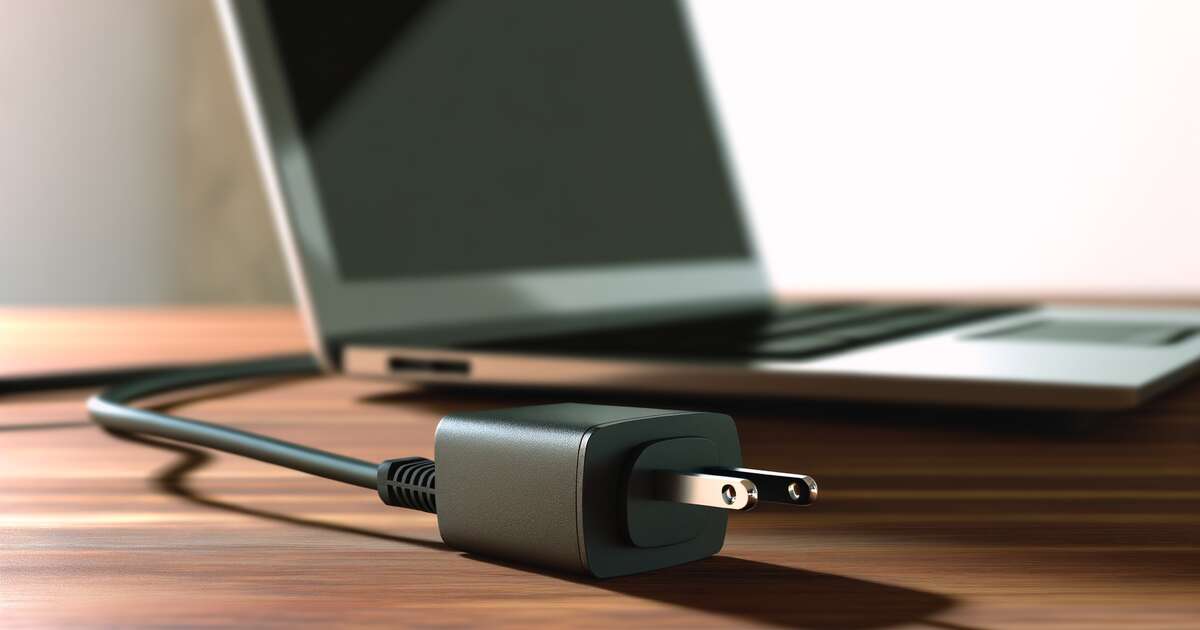
One of the first things you should check when your laptop isn’t charging is the power supply. Are you using the correct charger? It’s easy to accidentally switch chargers if you have multiple devices. Ensuring that your charger matches your laptop’s brand and model is essential for optimal performance.
Next, examine the state of the power cable and AC adapter. Visible wear, such as fraying or cuts, can prevent your laptop from charging efficiently. Have any unusual kinks or bends in the cable caught your attention?
- Check for any dust or debris in the port connections.
- Look for any signs of overheating in the adapter.
- Test the outlet you are using with another electronic device to ensure it’s working.
Finally, perform a “sniff test” 🐶 around the power adapter–a burnt smell can indicate internal damage. If your power supply passes all these checks, the issue might lie elsewhere. But sorting out any problems with the charger is a crucial first step in getting your laptop back to full health!
Examining the Laptop Battery Health and Status
Ever been stuck with a laptop that just won’t charge? It’s frustrating, isn’t it? One key area to check when troubleshooting a ‘Laptop Not Charging‘ issue is your laptop’s battery health and status. This vital step can reveal a lot about the current state of your device and possible reasons behind the charging problems.
To get started, you can easily check your laptop’s battery health in the system settings. For Windows users, you can simply navigate to the Battery Settings and view the Battery Report. But, how about macOS users? Well, holding down the ‘Option’ key and clicking the battery icon will do the trick! This report will give comprehensive information, such as the battery’s capacity, charge cycles, and overall health.
Why is this info helpful? Because a battery’s capacity diminishes over time. If your battery’s health is severely compromised, it might not hold a charge or receive power effectively, which could be the real culprit behind your charging woes. Could it be time to consider a replacement? 🤔
- Check battery status in Settings/Battery Report.
- Assess the number of charge cycles completed.
- Verify the design capacity against current capacity.
- Consider battery replacement if health is below acceptable levels.
Remember, laptop batteries are consumables and have a life expectancy. Regularly checking their health can keep you informed and mitigate issues related to charging before they escalate. Maintaining your laptop’s battery will not only extend its service life but also ensure it reliably charges when you need it most!

Tips for Resolving Charger Compatibility Problems
Encountering charger compatibility problems when your laptop refuses to charge can be frustrating, especially if you’re unsure where the issue lies. Is it the charger, the laptop, or something else entirely? Here’s how you can resolve these confusing scenarios.
Verify Charger and Laptop Port Compatibility
First, ensure that the charger you are using is compatible with your laptop. It’s not uncommon to use a substitute charger once the original is damaged or lost. Check your laptop’s documentation for charger specifications or look up the model online. Are you using the correct one? Also, examine both the charger’s plug and the laptop’s port for any physical damages or dirt that might be causing a poor connection.
Testing the Charger with Other Devices
If the compatibility checks out, try using the charger with another device, and see if it works. Sometimes, the issue might be with the charger itself. If the charger fails to power another laptop, it’s likely time to replace it. However, if it works with another device, your laptop’s charging port might be the culprit.
Use an Alternative Charger
To further narrow down the problem, try using a different charger that you know is compatible with your laptop. If your laptop starts charging with a different charger, then you likely need a new charger.
How to Handle Software Issues Affecting Charging
Has your laptop ever been firmly plugged in but frustratingly refused to charge? You might be facing a software-related issue! Software plays a pivotal role in hardware function, including your laptop’s charging capability. Let’s dig in to figure out how to address these sneaky software snags that might be preventing your laptop from charging.
Update Your Operating System
First things first, make sure your operating system is up to date. Sometimes, all it takes is an update to patch up any glitches that might interfere with your charging process. It’s a simple step, but can you imagine how great it’ll feel when a simple system update brings your laptop back to life? 🌟
Check Power Management Settings
Next up, dive into your laptop’s power management settings. Manufacturers often provide settings that could interfere with the charging mechanism, especially if set to optimize battery longevity or performance. Adjust these settings, and voila, watch your laptop begin to charge again.
Uninstall Recent Software
Could recent software installations be the culprit? Consider this: new software might conflict with your laptop’s hardware capabilities, including the charging function. Uninstall any recent software and see if that solves the issue. If it does, you’ll have identified the offender in your laptop’s charging mystery!
Common Questions
Why is my laptop plugged in and not charging?
A laptop that is plugged in but not charging can be experiencing issues due to several reasons. One common cause is a faulty or damaged battery. Over time, laptop batteries degrade, and their ability to hold a charge diminishes. Another potential issue could be the power adapter or the power cord itself, which may be damaged or not connected properly. Additionally, the charging port on the laptop might be loose or damaged. Software problems, such as outdated drivers or settings in the operating system that manage battery health, could also prevent the battery from charging. It’s useful to check these components systematically to identify the source of the issue.
How do you fix a laptop that won’t turn on and won’t charge?
Fixing a laptop that won’t turn on and won’t charge involves several troubleshooting steps. First, ensure that the power adapter and cord are correctly connected and functioning properly. Check for any visible signs of damage on the adapter or cord. Try using a different charger if available. Next, examine the battery and consider removing it and reinserting it to ensure it is properly connected. It’s also advisable to try powering on the laptop without the battery, using only the AC adapter, to determine if the battery is the issue. If the laptop still does not power on, it could be a more serious hardware issue such as a damaged motherboard or a problem with the power supply circuitry, which might require professional repair.
How do I know if my laptop charger port is broken?
To determine if your laptop charger port is broken, start by observing any physical damage or loose connections in the port area. If the port is loose, wiggly, or damaged, it may not form a good connection with the charger. Checking if different chargers work can also help rule out if the issue is with the charger or the port. Additionally, intermittent charging or the need to hold the charger at a certain angle to establish a connection can signify a broken port. In cases where physical inspection isn’t conclusive, using a multimeter to check for the correct voltage output from the port when a charger is connected can provide further confirmation. If the port is faulty, it usually needs to be repaired or replaced by a professional.
Why is my HP laptop not charging while plugged in?
If your HP laptop is not charging while plugged in, it could be facing issues similar to any laptop not charging. First, verify the power adapter and cord for any physical damage or improper connections. A faulty power adapter or power cord might need replacement. Check whether the battery is functioning properly by testing with another similar, functioning battery if possible. Sometimes, dust or debris in the charging port can prevent a good connection, so cleaning the port might help. Additionally, HP laptops sometimes require BIOS updates to fix power management issues that prevent charging. It could also be a case-specific issue related to the laptop’s internal circuitry or power management settings, which may require professional diagnostics and repair.
Preventative Measures to Avoid Laptop Charging Issues
Facing trouble with your laptop’s charging can be frustrating, but did you know many of these issues can be prevented with a few proactive measures? Keeping your laptop in excellent charging condition doesn’t require much, but the payoffs are huge, ensuring you’re always powered up and ready to go!
Regularly Clean Your Charging Port
One of the simplest yet most effective ways to avoid charging issues is to keep your laptop’s charging port clean. Dust, lint, and debris can easily accumulate and block the connection between your charger and the laptop. Use a can of compressed air or a soft brush to gently clean out the port. ⚡️ Isn’t it amazing how a little cleaning can go a long way?
Mind the Charging Cord
The condition of your charging cable is crucial. Regularly inspect it for any signs of wear or damage. Frayed or tangled cords can not only cause charging problems but can also become a safety hazard. Consider replacing your cable if it shows significant wear. Plus, keeping it neatly coiled when not in use can extend its life.
Use the Right Charger
Always use the charger that came with your laptop or one that is specifically recommended by the manufacturer. Mismatched chargers can lead to poor charging performance or even damage your laptop’s battery. Why risk a good day’s work with the wrong charger, right?
- Avoid overcharging by unplugging your laptop once fully charged
- Keep your laptop and its battery away from extreme temperatures
- Consider using a surge protector to guard against voltage spikes
Final Thoughts: Is Your Laptop Plugged in But Not Charging? What to Do Next
In conclusion, exploring the various reasons behind why your laptop not charging can seem daunting, but with the right knowledge, you’re well-equipped to tackle the issue head-on! Whether it’s checking your power supply, examining the battery health, or addressing software hiccups, each step is crucial for revitalizing your laptop’s functionality. Aren’t you feeling more confident about fixing this tech snafu?
Remember, preventative measures can save you from future headaches, so keep those tips in mind as you use your device. For more insights and troubleshooting tips, be sure to check back! With your newfound knowledge and proactive approach, your laptop will not only charge properly but continue to serve your needs efficiently. 😄 Here’s to uninterrupted productivity and trouble-free tech!